Apologies for the Help content loosing font size and bold when copy and pasted.
1. In the forums it has come to my attention that users sometimes confuse three separate boxes. On the home page we have a Command Box (top center) and a Go Box (2nd line, left). Note that the Command Box has the word "command" in it. The Go Box has a Go beside it and instructions to enter a passage or topic (an incomplete list as we will see in a bit).

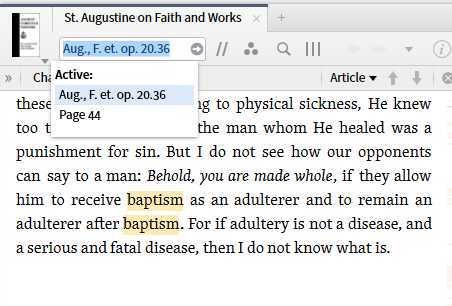
2. Every resource panel has a Location (reference) Box the contents of which varies from resource to resource ... it may be page numbers, head words, ... As you scroll up and down the resource the contents of this box will change to keep pace.

3. The Logos 6 Help file gives the following instructions for the Go Box:
[quote]
Enter passage/topic, press “Go”
In the upper left of the toolbar, there is an input box with a “Go” button. Start here to get into using Logos quickly and easily.
If you know what Bible passage you want to study:
1. Type a Bible reference, such as Mark 4:1-20. Note that you can type in all lower case, and that the input box will suggest pericopes as you type.
2. Click Go.
3. Logos opens a study layout that includes:
• The Passage Guide for a high-level overview of library content.
• The Exegetical Guide for looking up the words in the passage one by one.
• Your top five bibles all in the same tile. Click one of the tabs to switch to that Bible.
• Your top commentary.
• The Information tool for looking up the word under the mouse pointer.
• The Text Comparison tool, pre-loaded with the passage in your top five Bibles.
Or try a topic:
1. Type a topic, such as marriage. Note that the input box will suggest topics and passage ranges (from the headings in your Bibles) as you type.
2. Click Go.
3. Logos opens a study layout that includes:
• The Topic Guide for a high-level overview of the topic.
• The Sermon Starter Guide for sermon helps about the topic.
• The Bible Word Study Guide for wide-ranging information about the word in the Bible. Note that this won’t open if the topic you chose isn’t a Bible word.
• Your preferred Bible.
• Your top five dictionaries opened to the article on the topic.
Logos 6 Help (Bellingham, WA: Faithlife, 2015).
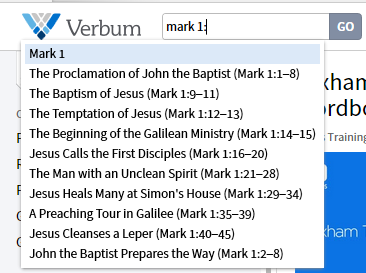
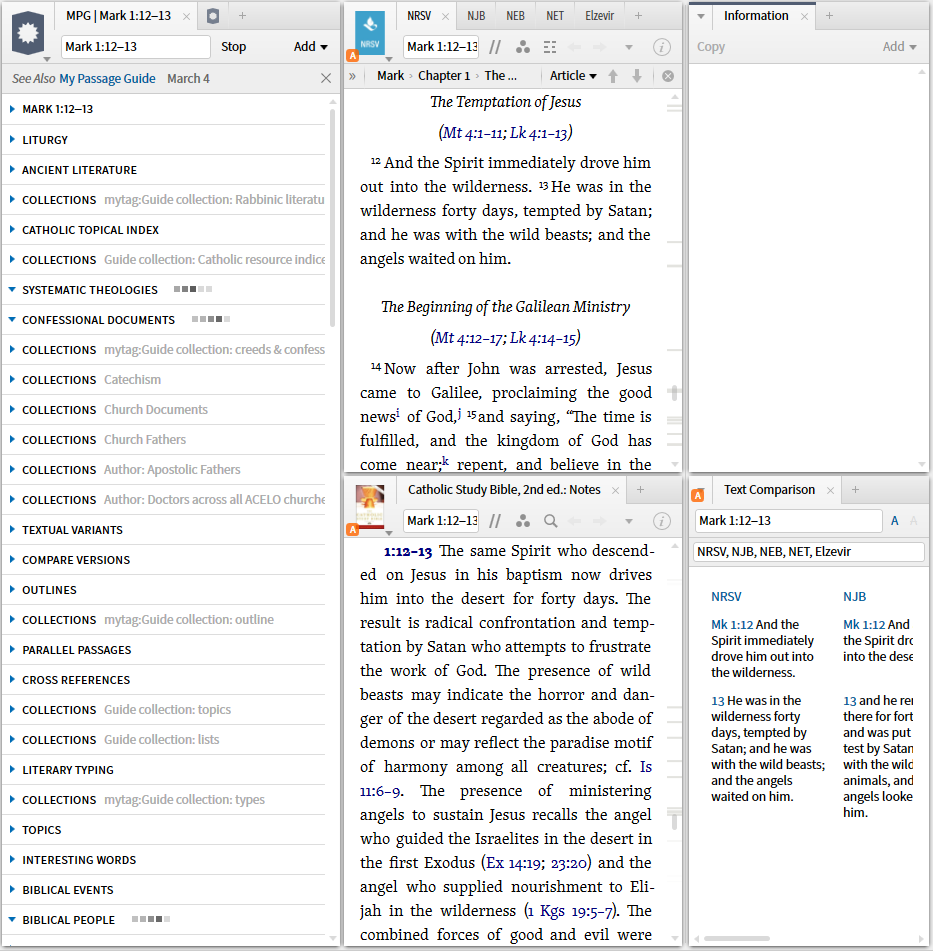
When I start to enter a passage reference, a list of relevant pericopes will appear. I may chose a pericope or enter a full reference. This will bring up a default layout positioned to that reference.
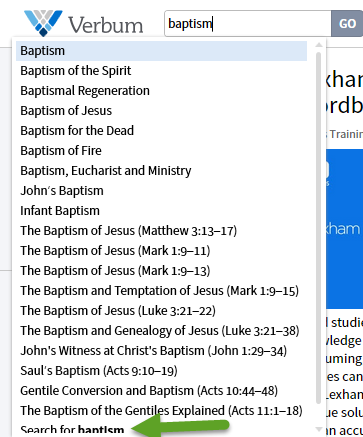
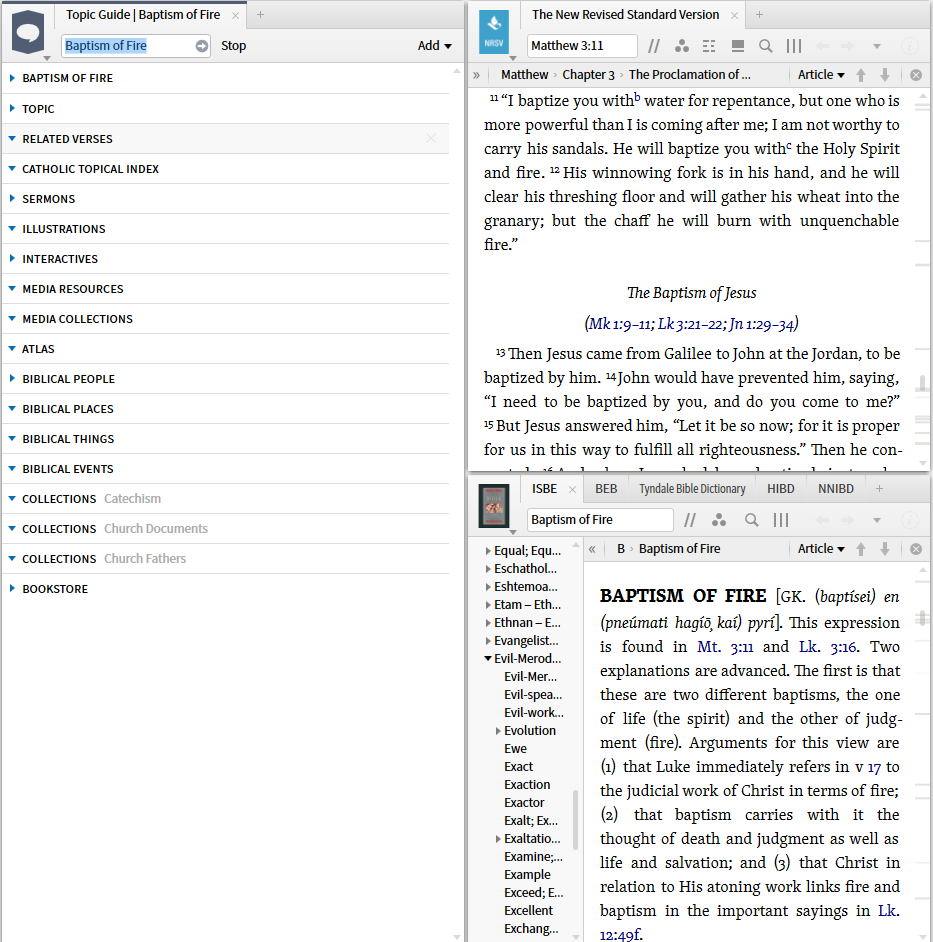
4. I can also enter a word or phrase which will produce a list of potential topics and pericopes containing it. Note that the menu lists consistently end with a search option. If I select a pericope the results will be as above. If I select a topic,a topic default layout will be returned.
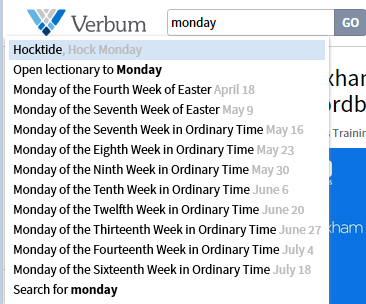
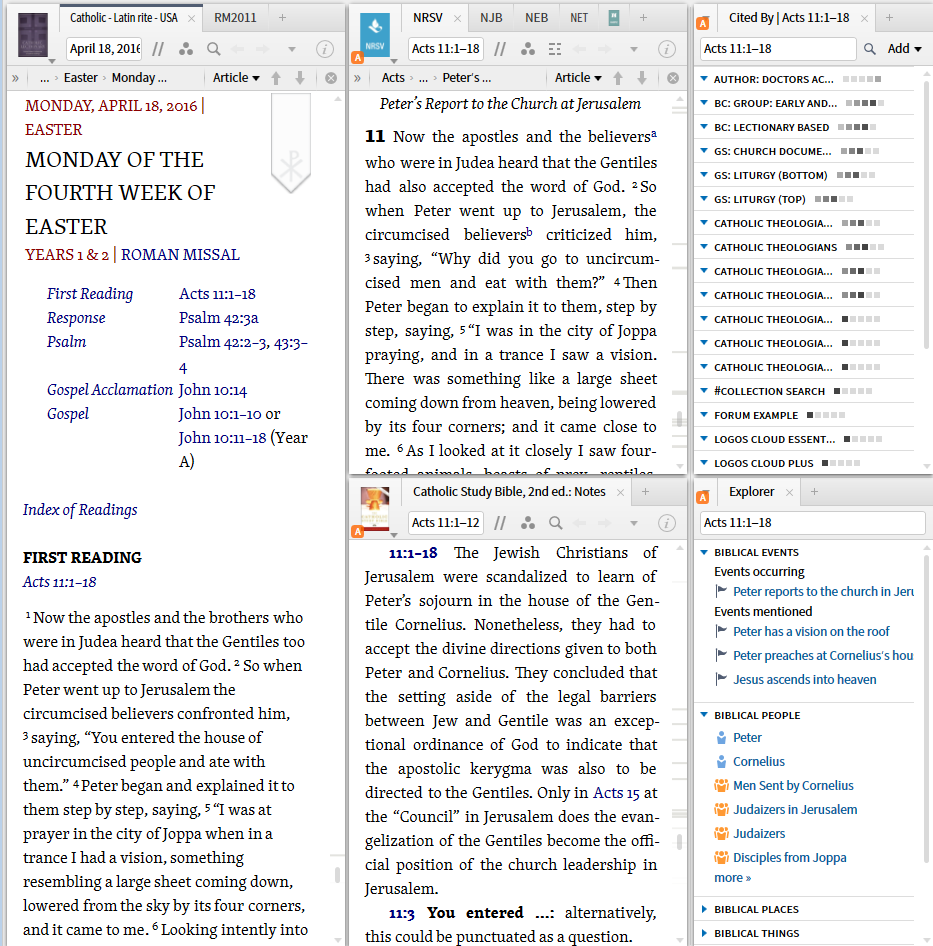
5. Not mentioned in Help but also available are liturgical dates. Here an additional option "open lectionary" will consistently appear. Again there is a default layout that will be returned when you enter a liturgical date.
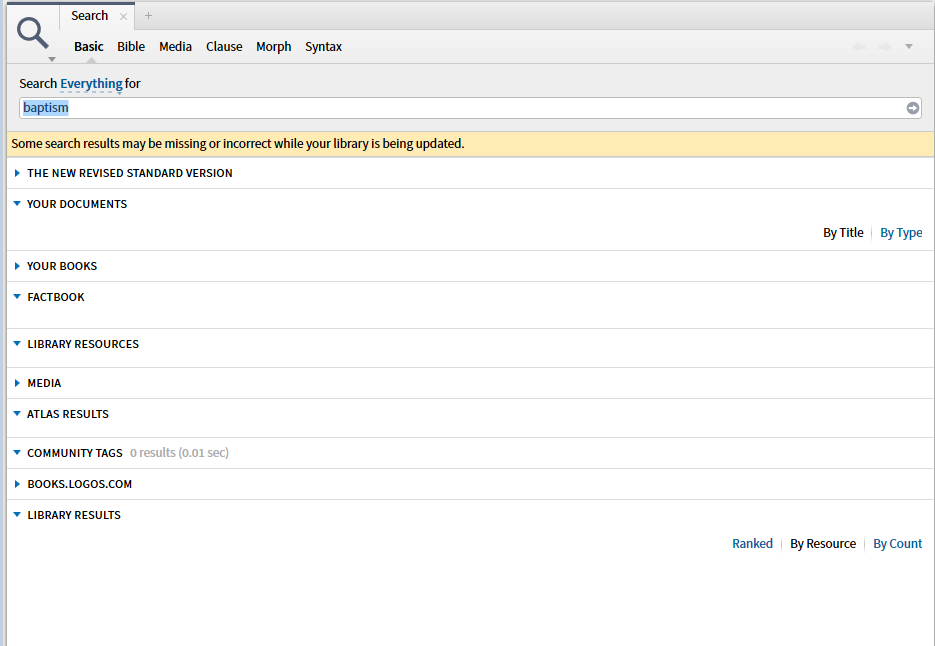
6. If you select "search" - usually the final entry in the list - an everything search page will be returned.
7. A new feature is the ability to customize the default layouts. Remember also that you may customize the Guides layouts.
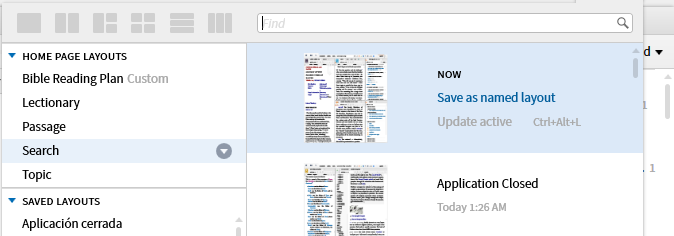
8. Logos 6 Help provides documentation of the available commands for use in the Command box. Some of these are advanced features; others are useful shortcuts for the average user.
[quote]
Command Box
The Command Box is for those who prefer to type quick commands to get results, rather than navigating the application via the user interface. It also has some commands which perform specific functions within the application, like checking for resource updates, forcing a reindex, or setting a Send to Kindle address.
Commands are not case-sensitive, so home and Home and HOME are all equivalent.
Note that some program features, such as forced reindexing or updating, are only available through the command box. Those commands are listed in a separate section at the end of this article.
Executing a command
1. Click into the Command Box on the Toolbar at the top of the program window. Or type Option-Command-L (Mac) or Alt-D (Windows).
2. Type a command. Note that several commands may be suggested.
3. Press Enter to choose the first command, or click on the suggestion that matches what you meant.
Command Reference
In the sections below, each command shows a template to fill in. Bold text is the part you type literally. Bold italic text is a parameter that you supply. Optional clauses and parameters are enclosed in brackets, so you only need to type those if you want. Where multiple different clauses can go into the same slot, there’s a pipe between them.
So Open something [to somewhere] [in a new tab | in a new window] means that you can leave off the “to somewhere” and “in ...” clauses if you don’t need them, and it means that the legal values for the “in ...” clause are either “in a new tab” or “in a new window” — but not both.
You don’t type the brackets or the pipes. Look to the examples to show exactly what to type.
Add
Add Note to passage [in note file]
Adds a note to a Bible passage in all Bibles in a specified note file. The passage parameter is required, but the note file can be omitted, in which case the last note file you touched will be added to.
• add note to jn 1.1 in my bible notes adds a note to John 1:1 in all Bibles with that passage, and to a Note file named “My Bible Notes.”
• add note to jn 1.1 adds a note to John 1:1 in all Bibles in the last note file you touched, or a new one if you haven’t opened any note files.
Close All
The Close All command closes all open docked and floating panels.
Tip: Drag this command from the popup entry helper menu to the shortcut bar on the main application toolbar. Then you will always have an easy one-click “panic button” on your toolbar to press that will close everything and get you back to a clean slate. You can drag any command from the entry helper into the program layout or the shortcut bar.
Copy
Copy passage [from resource]
Copies a given passage using the current Copy Bible Verses style to the clipboard. The passage must be specified. The resource title (or abbreviated title, such as “NIV”) can be omitted, in which case the top Bible that has that verse will be used.
• copy jn 1.1 from ESV copies John 1:1 from the English Standard Version.
• copy jn 1.1-3 copies John 1:1-3 from your top Bible.
You can now paste into any application. Type Control-V (Windows) or Command-V (Mac) in most programs to paste.
Create/Make
Create document type [named title]
Make document type [named title]
Creates a document of the specified type and name. The document type must be specified, and must be one of the Logos document types. (You can find the complete list by opening the Documents menu and looking on the left side under New.) The title can be omitted, in which case the new document will have a default title assigned by the software.
• create clippings or make clippings makes a new untitled Clippings document.
• create prayer list named My Prayers makes a new Prayer List document titled “My Prayers.”
Note that you’ll want to use proper spelling and capitalization for the document title, because that is the exact text that is going to be the name of your new document.
Go to/Look up/Open/Show
Go to passage [in resource] [in a new tab | in a new window]
Look up something [in resource] [in a new tab | in a new window]
Open something [to somewhere] [in a new tab | in a new window]
Show something [on some topic] [in a new tab | in a new window]
Opens (or shows) the specified something — either a document by title, or a guide or tool panel by name. The optional “to somewhere” (or “on some topic”) clause specifies what content the panel should open to. The optional “in new tab” clause specifies that the panel should be opened in a new tab in the active tile. The optional “in a new window” clause specifies that the panel should be opened in a new floating window. You can choose one and only one “in ...” clause, since the panel can only open in a new tab or in a new window, not both.
The following examples are representative rather than comprehensive.
Resources:
• open pilgrim’s progress or open pilgrim open a specific resource.
• open nigtc: james to james 1:4 open a specific commentary volume to a specific passage.
• open lbd to angels in a new tab or show lbd on angels open a specific dictionary to a specific article (by headword) in a new tab.
• look up polydactyly opens the top resource that has that word as a headword. Note: May open an English dictionary, or a Greek lexicon, or a technical glossary — whichever resource is highest-ranked that can open to that headword.
Bibles:
• go to jn 1.1 or just jn 1.1 opens John 1:1 in the top Bible that has that reference.
• go to jn 1.1 in esv opens that passage in a specific Bible.
• open esv in a new tab opens the ESV Bible in a new tab in active tile.
• open esv to jn 1.1 in a new window opens the ESV Bible in a new window and navigates it to John 1:1.
Guides:
• show passage guide on mark 4:1-9 opens the Passage Guide and runs it on Mark 4:1-9.
• show topic guide on love or open topic guide to love
• open bible word study to honor in a new window runs the Bible Word Study guide on the Bible word “honor” in a new window.
Documents:
• open my notes opens the document titled “My Notes.”
• open my notes in a new tab opens that document in a new tab within the active tile.
Tools:
• open factbook to moses or show factbook on moses opens the Factbook panel to the article on Moses.
• show compare pericopes on jn 3:16 or open compare pericopes to jn 3:16 opens the “Compare Pericopes” tab of the Passage Analysis tool to John 3:16.
Help
help [on topic]
• help opens the help resource.
• help on searching opens the help resource to the article on searching.
Load Layout
Load layout name
Loads the layout with title specified by layout name.
• load greek study loads the layout called “Greek Study.”
Note that for documents, load new is a synonym for create so load new clippings creates a new Clippings document.
Read and Start/Stop Read Aloud
read [aloud]
start reading aloud
stop [reading aloud]
Starts or stops reading the active resource at the current location.
Search
[Basic | Bible | Morph] Search for query
Launches a search for a specified query in the Search panel. Optionally specify a search type, such as bible or morph; otherwise, the Basic Search will be used.
• search for truth opens the Basic Search and searches your library for the word “truth.”
• bible search for love BEFORE "the world" opens the Bible Search and searches for the query “love BEFORE "the world".”
Note that the full search engine syntax is available for specifying the query.
Windows only: Press Control-Enter to search Top Bibles, or Control-Shift-Enter to search Entire Library.
Set Settings
set setting to value
Sets the value of a given setting. See the full list of settings on the Program Settings page. Dual-state on/off settings take yes or no as values or on or off. All settings can be reset with the special value default.
• set program scaling to 200 scales the entire user interface up by 200%. Default is 100%.
• set program scaling to default returns the program scaling to 100%.
• set default font to helvetica changes the default resource font to Helvetica.
• set default text size to 120 increases the default resource text size by 20 percent.
• set at startup open to blank layout turns off the Home Page.
• set language to swedish changes the interface language.
Set Kindle Account to kindle.com email
See the Send to Kindle page for details on how to use the set command to set your Kindle email address.
Set Show Passage List Visual Filter to yes or no
Disables or enables the Passage List Visual Filter from appearing in the Visual Filter menu. This filter can cause slowness in the application for users with an extremely large number of Passage Lists, and this command provides a workaround to improve the performance.
Command-only Features
These features have no user interface other than entering a command into the command box. Generally speaking, these are advanced or uncommon. Proceed carefully.
Import
import [delete] what
Find more details in the Importing Libronix DLS Documents article.
Rebuild index
Rebuild [index name] index
Sometimes the search index will need to be rebuilt, either because the indexer failed to complete its tasks, or because the index somehow became corrupted. Note that building the index takes a long time and uses a lot of system resources, so don’t do this unless you are prepared to wait. If the indexer is already running, these commands restart the indexer from the beginning.
• rebuild index rebuilds the indexes for Bibles and all other resources.
• rebuild bible index reindexes just Bibles.
• rebuild library index reindexes all resources except Bibles.
• rebuild personal book index reindexes just personal books.
Learn more about indexing.
Reindex a resource
Reindex resource
Rebuilds the index for just one specific resource. The resource can be specified by title or resource identifier. A resource identifier can be discovered at the bottom of the Resource Information page for a given resource.
• reindex esv rebuilds the index for the English Standard Version.
• reindiex LLS:46.10.22 rebuilds the index for the Merriam-Webster’s Collegiate Dictionary (Eleventh Edition).
Remove a Spell-Check Word
remove word from language
Removes a word you have previously added to your custom user spell-checking dictionary in a given language.
• remove mishmosh from en removes the word “mishmosh” from the English dictionary.
Logos ships with these dictionaries by default:
• en English
• es Spanish
Remove Expired Resources
In some cases, specifically when acquired as a rental or those included as part of Logos Now or Logos Cloud collections, resources may have been downloaded to your computer that you no longer have licenses to. These local files can be safely deleted to free up disk space using the following command:
• delete unlicensed resources
This requires a Logos version of 6.4.0.0027 or higher.
Scan Resource Path
scan path
Scans for resources in the specified path and integrates them into your library. This may take a long time, and standard licensing restrictions still apply. That is, only resources that you have a valid license for will appear in the library after scanning. If you think you should have a license, but the scan command doesn’t recognize it, call customer service.
• scan c:\misc\resources
• scan optical media scans for resources the CD/DVD-ROM drive (Mac)
• scan dvd scans for resources on the CD/DVD-ROM drive (Windows)
Synchronize
You can force Logos to synchronize your settings and documents by typing sync now into the command box.
Update
• update now forces the program to check for updates.
• update resources forces the program to check for and download new versions of resources.
• update active layout saves changes made to the currently active layout.
Logos 6 Help (Bellingham, WA: Faithlife, 2015).
As an example, here is a simple open command and its results.
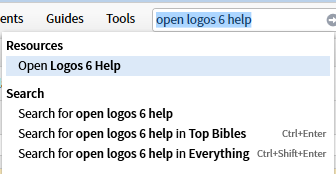
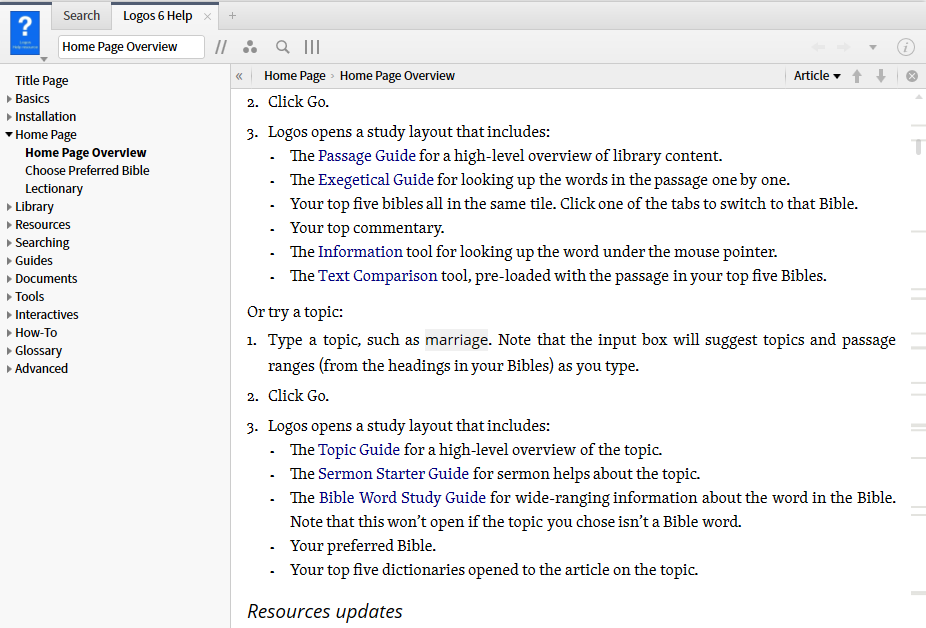
9. Logos 6 Help has a brief description of the Location Box.
[quote]
Location Box
Type the passage, page number, dictionary word, etc. you want to navigate to in the resource and press Enter.
Note: Bible reference input boxes support the specification of a verse map to use when parsing.
Logos 6 Help (Bellingham, WA: Faithlife, 2015).
Clicking on the box will open the drop down menu to show you what kind of references are valid for this particular resource. They will correspond to the indexes shown in the information panel of the resource.