In this post I am going to rely on Logos Help as a reminder that Help, while still not perfect, has become a useful source. I have gone to the section on Resources ==> Resource panel.
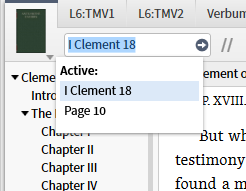
1. These examples are all taken from the standard mode; page mode is discussed at the end. You may navigate to a precise location via the location box.
[quote]
Location Box
Type the passage, page number, dictionary word, etc. you want to navigate to in the resource and press Enter.
Note: Bible reference input boxes support the specification of a verse map to use when parsing.
Logos 6 Help (Bellingham, WA: Faithlife, 2015).
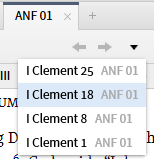
2. You can navigate through your history of locations previous visited with the ability to view your history.
[quote]
Back and Forward Arrows
The left and right arrows on the right edge of the resource toolbar move you back or forth through this panel’s location history.
1. Click the left arrow on the right side of the toolbar to go back to a previously visited location in the resource.
2. Click the right arrow to go forward to a previously visited location in the resource.
Windows keyboard shortcuts:
• Alt+left arrow — go back
• Alt+right arrow — go forward
Logos 6 Help (Bellingham, WA: Faithlife, 2015).
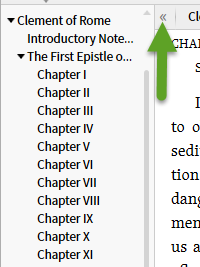
3. The table of contents is another mode of navigation - note the expand/contract option on the Locator Bar. Each level of the TOC except the lowest may be expanded and contracted via the arrowhead. Clicking on a heading in the TOC takes you to that location.
4. The Locator Bar offers next-prior navigation on a number of items/units within the resource.
[quote]
Locator Bar
The Locator Bar appears directly below the resource toolbar. It shows the current location within the resource table of contents, and provides navigation to articles, verses, search hits, and so on.
1. Click on the book name, chapter, or article displayed under the reference box to jump to the beginning of that book, chapter, or article.
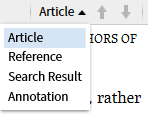
2. Choose the navigation option used by the up and down arrows on the right side of the locator bar. Options include: Article, Book, Chapter, Verse, Reference, Annotation, Filter Highlight, or Search Result. This list will vary depending on the resource, and the presence of highlighting, visual filters, or search results.
Keyboard shortcut to show/hide locator bar:
• Ctrl+Shift+L (Windows)
• Shift-Command-L (Mac)
Logos 6 Help (Bellingham, WA: Faithlife, 2015).
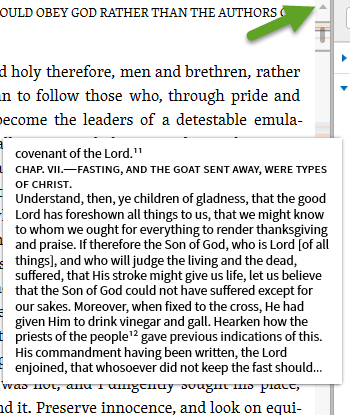
5.The scrollbar offers up/down a line from the arrowheads at the end, major movement via grab and drag the grey button, and specific navigation via the Scrollbar bookmarks..
[quote]
Scrollbar bookmarks
Also called “read-wear marks,” these hashmarks appear in the scrollbar of resources to indicate where you’ve been.
• History (gray), Favorites (blue), and current Search Results (orange) are displayed as colored lines on the resource scrollbar.
• Hover over a gray mark to see places you’ve visited. The longer you spent time there, the darker the mark.
• Hover over an orange mark to view a current search result.
• Hover over a blue mark to view a place you’ve saved as a Favorite.
• Go to Tools | Program Settings to turn scrollbar bookmarks off or on.
Logos 6 Help (Bellingham, WA: Faithlife, 2015).
6. In addition, when your cursor is in the panel text, the up and down arrows will scroll you through the text.
7. One can page up/down from keyboard shortcuts:
[quote]
• Shift-Spacebar — Page Up in a resource
• Spacebar — Page Down in a resource
Logos 6 Help (Bellingham, WA: Faithlife, 2015).
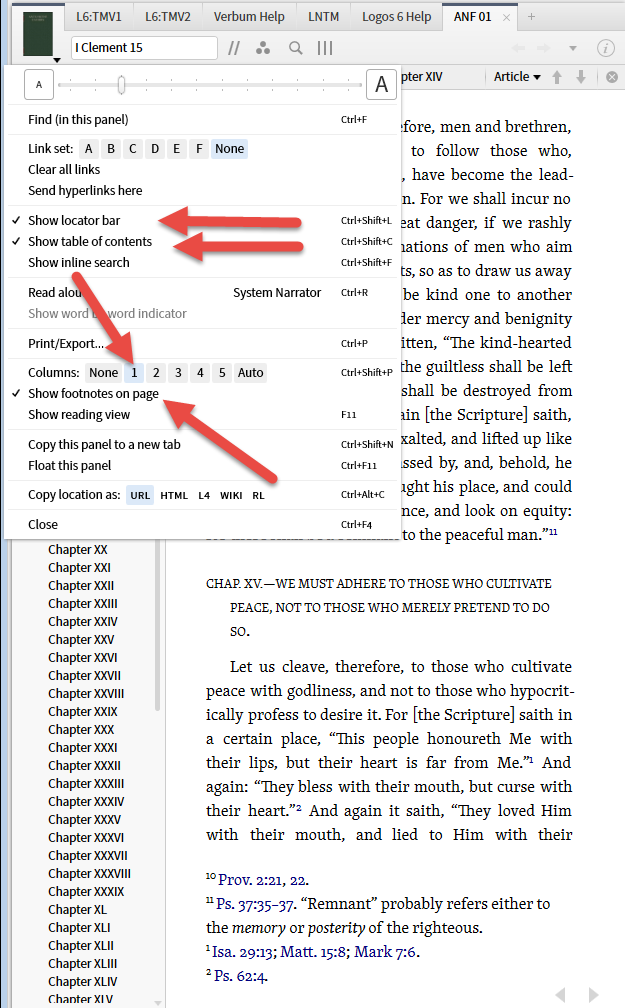
8. The resource panel menu gives us access to some features already mentioned such as the table of contents and locator bar. It also allows us to put the resource in page mode by setting the columns to something other than none. Then we can navigate prior-next page via the arrowheads at the bottom of the page.
[quote]
Resource Panel Menu
The panel menu is under the book cover or icon in the upper-left of any panel.
Click on it to show the panel menu:
. . .
• Show locator bar — Shift+Cmd+L (Mac), Ctrl+Shift+L (Windows) — See where you are in the resource, and move up from an article to a chapter or higher by clicking in the location path.
• Show table of contents — Shift+Cmd+C (Mac), Ctrl+Shift+C (Windows) — Toggle the contents pane open or closed.
• Show interlinear pane — Cmd+Shift+R (Mac), Ctrl+Shift+R (Windows) — Toggles the interlinear pane at the bottom of a reverse interlinear Bible.
. . .
• Columns — Shift+Cmd+P (Mac), Ctrl+Shift+P (Windows) — Displays resource text in columns for easier reading with page scroll buttons in the lower-right corner (lower-left for RTL resources). Scrollbar is hidden with all column choices except None.
• None = one column in non-paged view;
• Numbers 1 to 5 show exactly that many columns;
• Auto shows the number of columns that will fit in the panel.
• Show footnotes on page — Toggles footnote content in a resource (when the resource is set to column paged view.)
• Show reading view — Shift+Cmd+F (Mac), F11 (Windows) — Toggles full screen view on or off.
Logos 6 Help (Bellingham, WA: Faithlife, 2015).