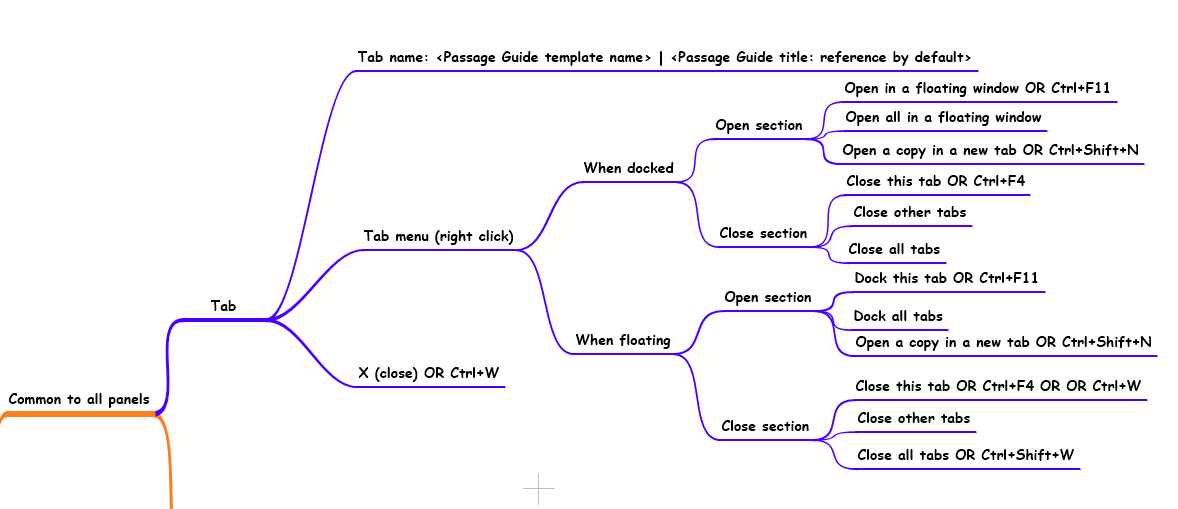
- Terminology: a window contains tiles which are filled by panels which are identified by tabs. The picture above shows a single tile containing two panels.
- Title of the tab:
a. When the panel contains a resource, the title of the resource is the title on the tab; it may be shortened to fit in the space available.
b. When the panel contains a tool, the title of the resource is the name of the tool which may be followed by a pipe sign and the reference of the entity displayed.
- You may drag and drop a tab:
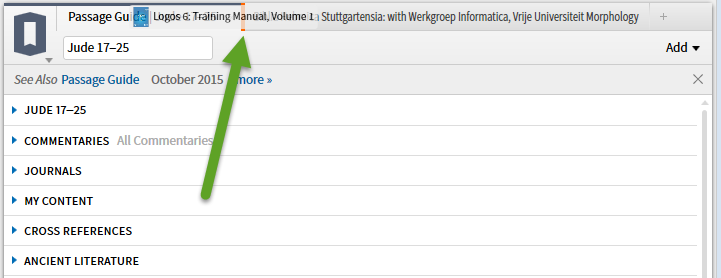
a. to rearrange the order of items within a tile. A bright, thick orange line shows where you are placing the panel.
b. to move a panel to a different window. A bright, thick orange line shows where you are placing the panel.
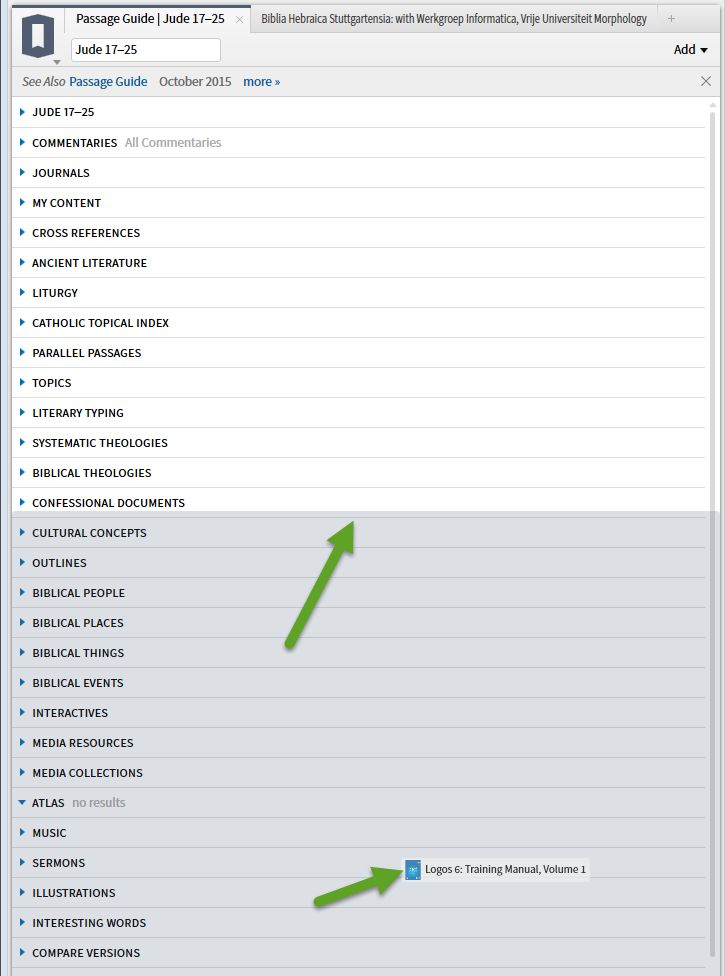
c. into the body of the panel to divide the tile either vertically or horizontally. The area into which the panel will go is shaded in gray.
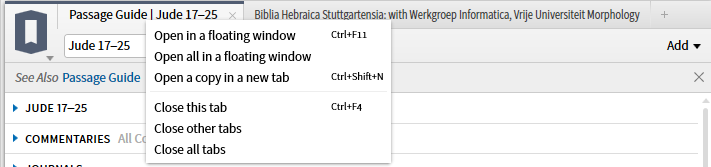
- Right clicking on the tab will open the Tab Menu. The Tab Menu is relatively fixed varying only between floating and docking commands and omitting reference to other tabs when there are none. Several of the commands on the menu have keyboard shortcuts:
Open in a floating menu/Dock this tab OR Ctrl+F11
Open all in a floating menu/Dock all tabs
Open a copy in a new tab OR Ctrl+Shift+N
Close this tab OR Ctrl+F4 OR Ctrl+W
Close other tabs (omitted when there is only one panel in the tile)
Close all tabs (in tile)
Note close all tabs in all tiles is Ctrl+Shift+W
- The X to the right of the tab title closes the panel OR Ctrl+F4 OR Ctrl+W
So that simple little tab allows you to move the panel via drag and drop; close the panel via the X or execute 6 (or 8 counting variations) commands.