When I use different highlight colors for different text features, how do I tell which color is used the most?
if you are highlighting the speech with different styles (colours) for different persons then the search for number of words becomes something like * WITHIN {Highlight Personality1} and * WITHIN {Highlight Personality2} where Personality1 is the style name you use.
You need a Logos 6 base package and the search format can be found at https://wiki.logos.com/Search_HELP#Search_Extensions including the use of WITHIN.
Using * like this (as a wildcard for any word) takes a long time --> several minutes at least.
When I use the "close all" command it keeps sending me to the home page. Help!
if you are highlighting the speech with different styles (colours) for different persons then the search for number of words becomes something like * WITHIN {Highlight Personality1} and * WITHIN {Highlight Personality2} where Personality1 is the style name you use.
You need a Logos 6 base package and the search format can be found at https://wiki.logos.com/Search_HELP#Search_Extensions including the use of WITHIN.
Using * like this (as a wildcard for any word) takes a long time --> several minutes at least.
The "close all" command goes to your home page if you have specified the home page as the setting for "At Startup Open to" in your Program Settings. If you change that to blank layout, then "close all" will not return to the home page.
How can I see just the highlighted text?
Inline Search for {Highlight *} is close, but it gives an excerpt as you note.
Might not be exactly what you are looking for but if all the highlights are in a single Notes document try looking at that document in "quotes" view
Again, not quite what you're looking for but you'll see the following in the top right of most panels in Logos:
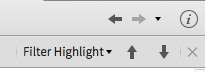
If you select "Filter Highlight" from the drop-down, using the up & down arrows will take you between highlights in the resource.
How do I refresh the home page?
On a Windows machine <alt-h> does the trick for both closing and opening the home page.
Try F5 key (refresh)
How do I open to the Search result?
Just now I found out that clicking on the heading of the search result will bring you to the start of that section, whereas if you click on the highlighted search term in the search result, it will indeed bring you to that exact spot in the book.
How do I search for "name1" WITHIN 1 WORD "name1"?
Syntax Search makes it possible.
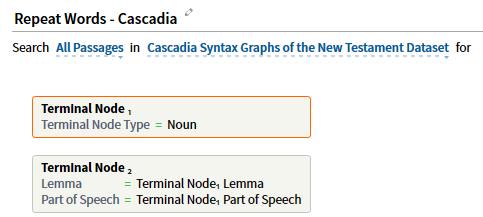
You could do similar for the OT using Segments.
Greek OpenText that includes Acts 9:4
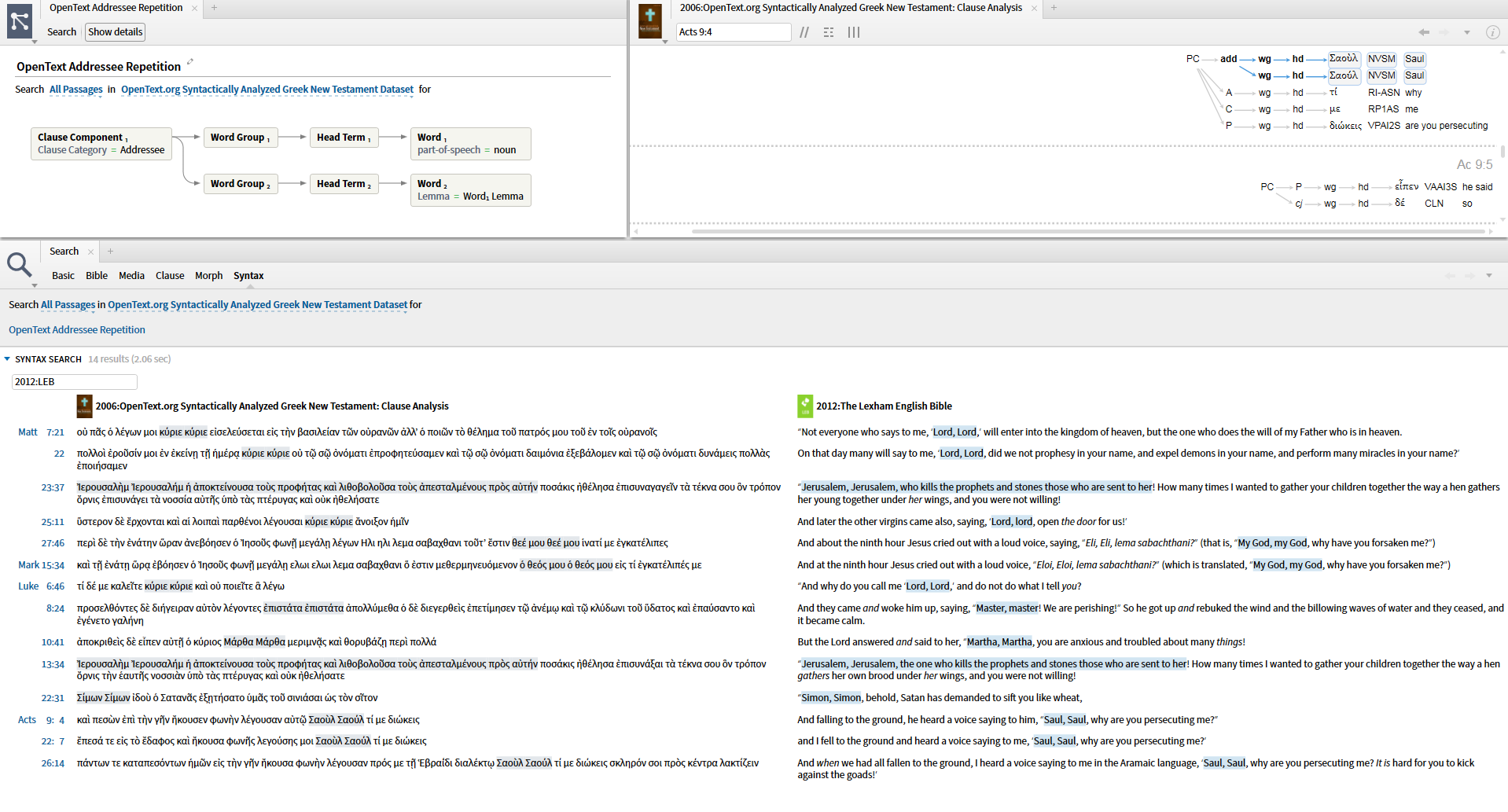
Greek Cascadia that includes Acts 9:4
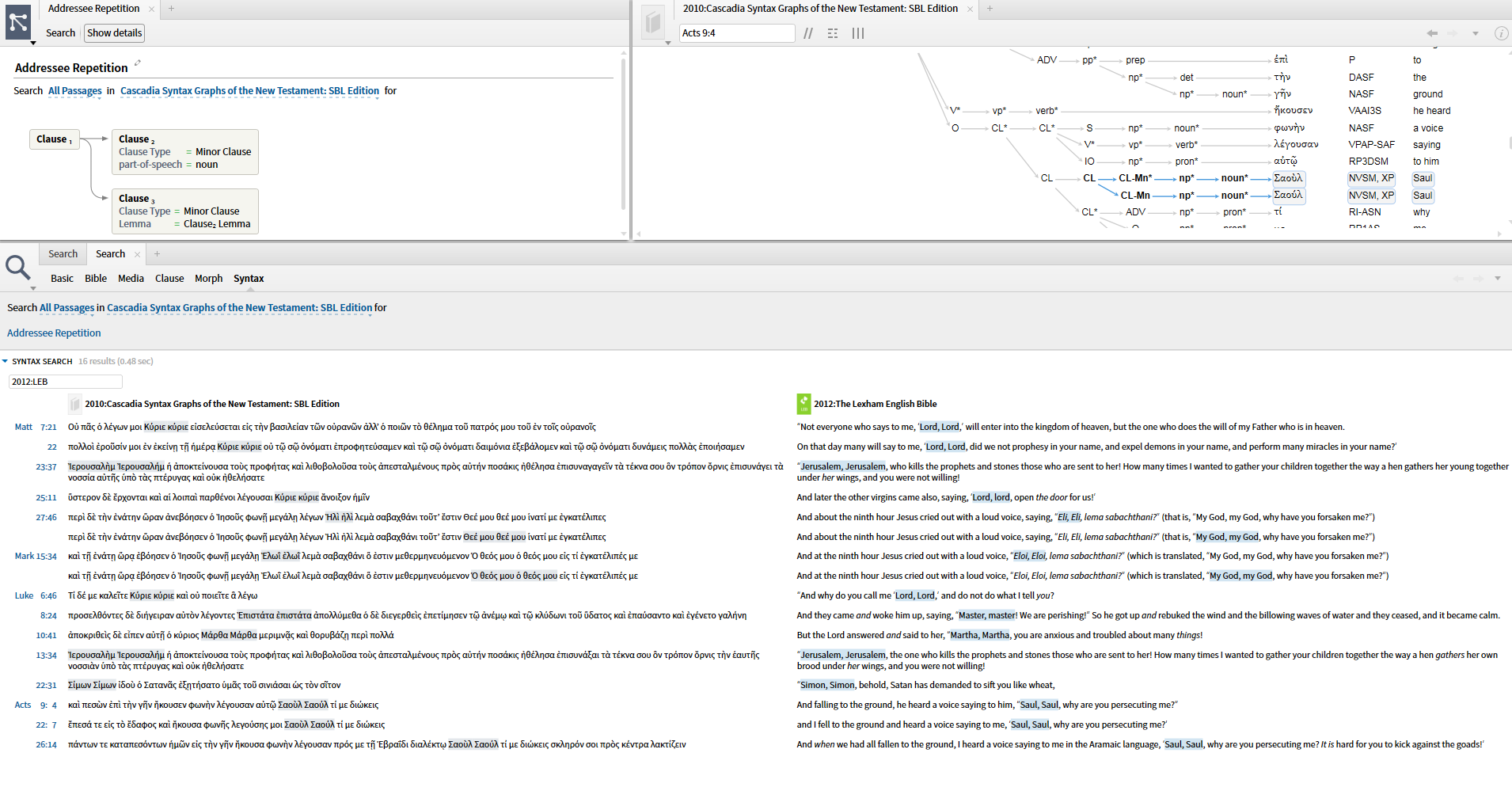
Greek Lexham Syntactic that includes Acts 9:4
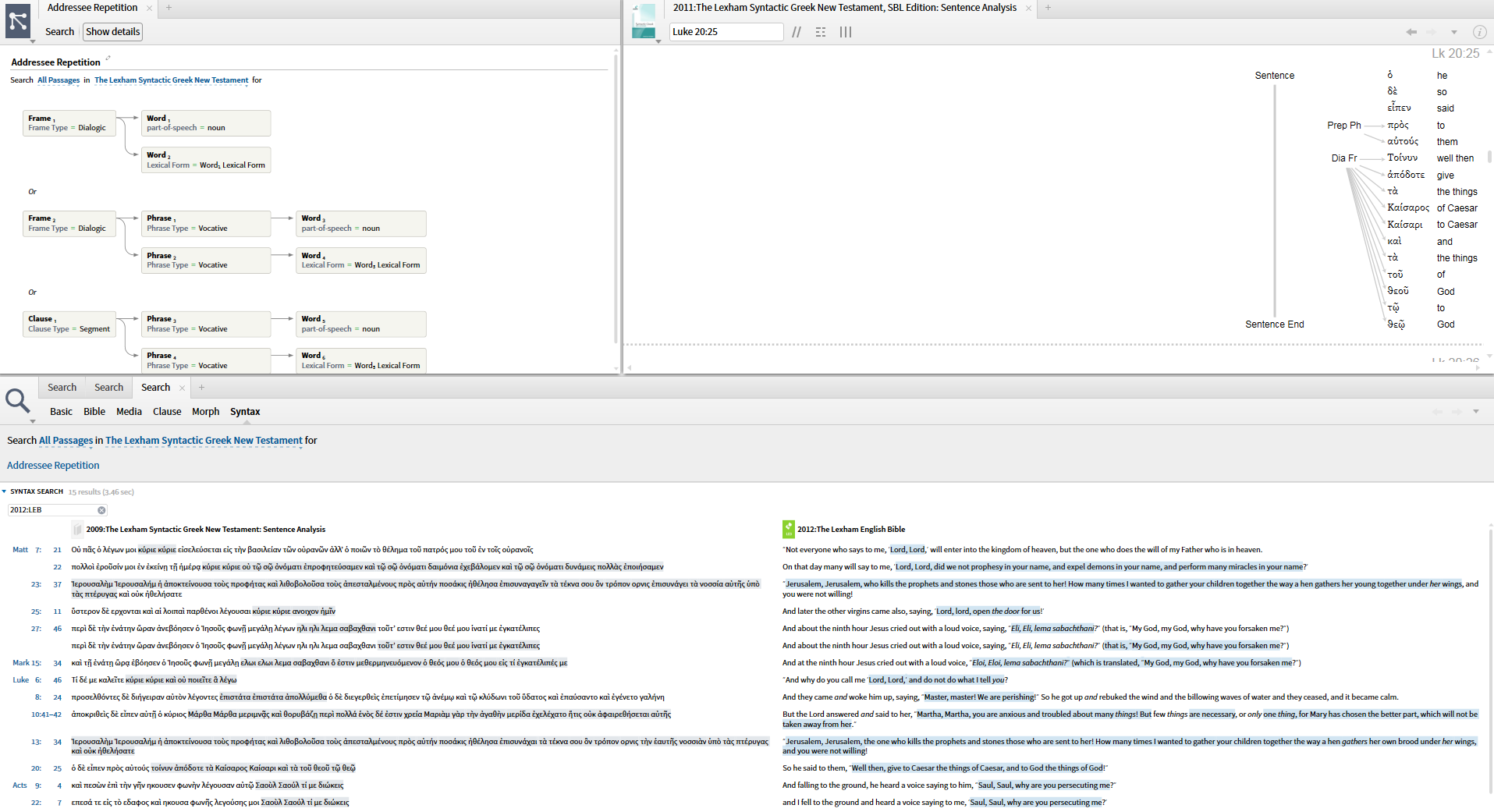
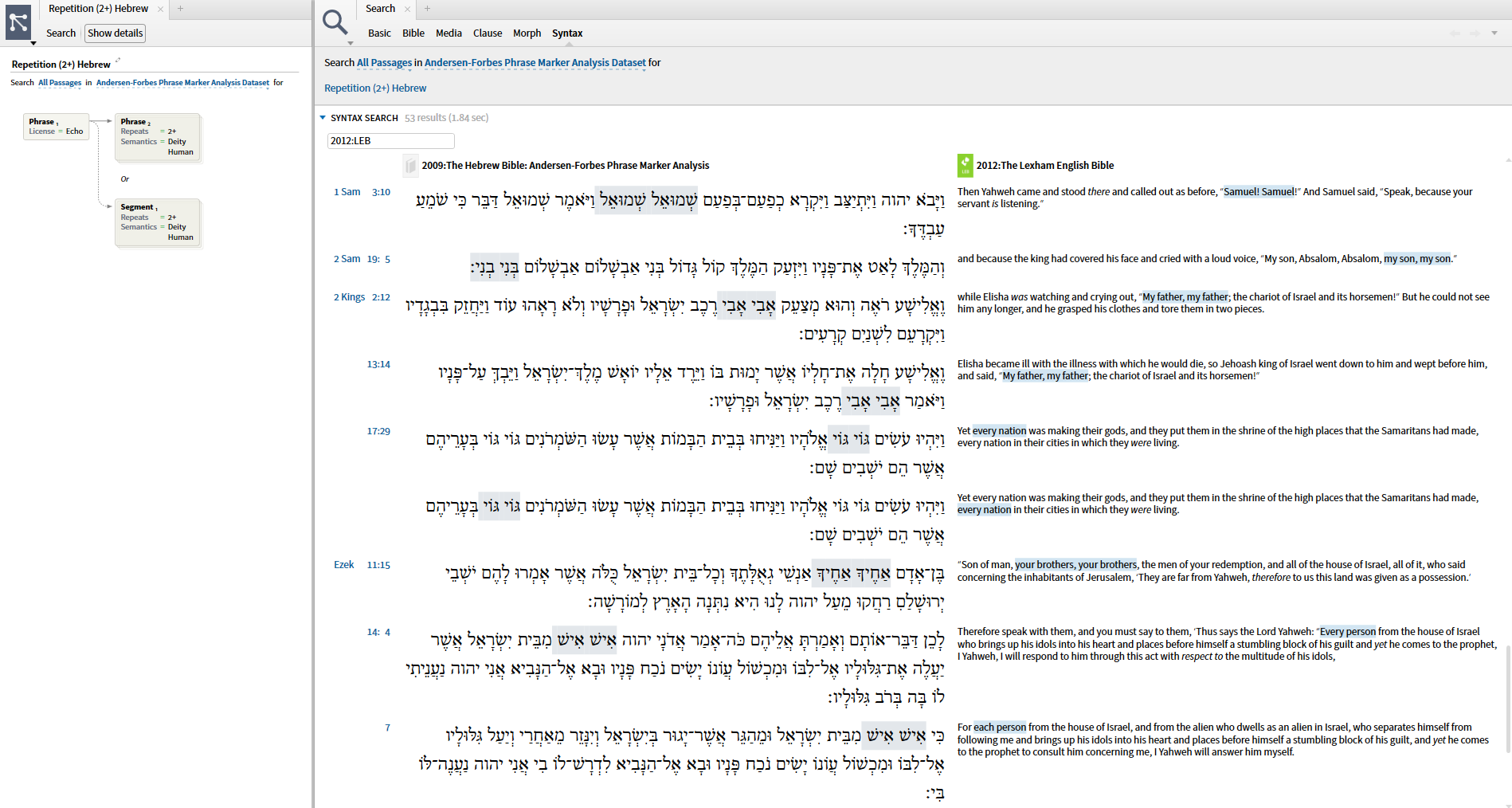
Hebrew repetition:
How do I specify a Greek bible in a link in Notes?
from the wiki
Creating a Link to a specific Bible
Many times you may want to have a scripture reference to a Bible other than your preferred Bible (one that you set on the Home page). In these cases you will need to manually create the hyperlink as you would for hyperlinks to other resources. Even though Logos4 automatically creates a link to your preferred Bible you can override this when you manually create the link.

- Type your scripture reference in your note.

- Open the Bible that you want to link to.
- Make sure that the desired scripture reference is showing in the reference box of your Bible.

- In your Bible click on the icon in the upper left corner to open the menu.
- In the drop down menu click on URL. (now Logos4 has copied the URL into your clipboard ready for pasting)
[you can skip steps 4 & 5 by clicking in the Bible’s panel then on your keyboard press Ctrl Alt C (Mac users: press Option-Command-C), this copies the URL to the clipboard]

- In your note, use your mouse to drag over your scripture (or text you entered) to select it.
- Right click in the hyperlink box. A pop-up menu appears.
- In the pop-up menu click on Paste.

- Notice that Logos4 pasted your URL into the hyperlink box.
- In your note, click somewhere off of the selected text to deselect the text.
- Hover your mouse over the new hyperlink. Logos4 will show you a pop-up box with the verse inside it.
- Notice that your Bible version is showing at the bottom. This is a good way to verify that your hyperlink is to the correct Bible (not your preferred Bible).
- To jump to the hyperlink, on your keyboard hold down the Ctrl key and click on the link with your mouse. (Mac users: use Cmd key)
Another idea is having top prioritized Bible in Multi-view (Logos Now) OR link set so opening link in English also opens link in Greek.
How can I see more context for in-line Search results?
Try changing the option above the search string from "Sentence" to "Article". This will allow you to see then entire context of the search results. You can navigate between results by changing the "Article" option in the locator bar to "Search Result" and then using the up and down arrow buttons.

Is there a way to use the concordance tool with a passage list?
We do plan to add Passage Lists to the Concordance tool's reference range picker (just like in Search) as soon as we can get to it.
In the meantime, you can use the following (clunky) workaround to turn a passage list into a saved reference range in the Concordance picker:
- Create your Passage List.
- Print/Export it.
- Choose "Print as minimized list" on the left, and then "Copy to clipboard" under "Export" on the right.
- Open a text editor (such as Notepad) and copy just the list of references.
- Go to Concordance, and click on the reference range picker in the toolbar.
- Paste the reference list into the "New Reference Range" box at the bottom of the picker popup.
- Type in a name, and hit "Save."
Now you have a saved reference range that you can choose again next time from the picker without going through all these steps.
I did this recently to get a different concordance for each of the speeches in Job (for a Bible Study Magazine article I wrote) to see if I could pick out any differences in the sorts of things each of Job's friends talked about. It worked great. This video shows me making a concordance just of verses where Zophar is talking. (No sound. The print/export panel and Notepad opened off-screen and I had to drag them into the recording window, too. Nevertheless, hopefully you can get the gist of it.)
http://screencast.com/t/D056e5MTAplE
I need help understanding a Logos Course and how to use it.
The Mobile.Ed courses are videos, a textbook with transcript accompanying the videos, and an audio version of the videos. So you get - according to the product page - six hours of video training by Professor Darrell Bock, a world renowned scholar. The textbook would probably be several hundred pages if printed as a book.
Included into the courses are some Logos usage training sections, unit quizzes (multiple choice) and two exams.
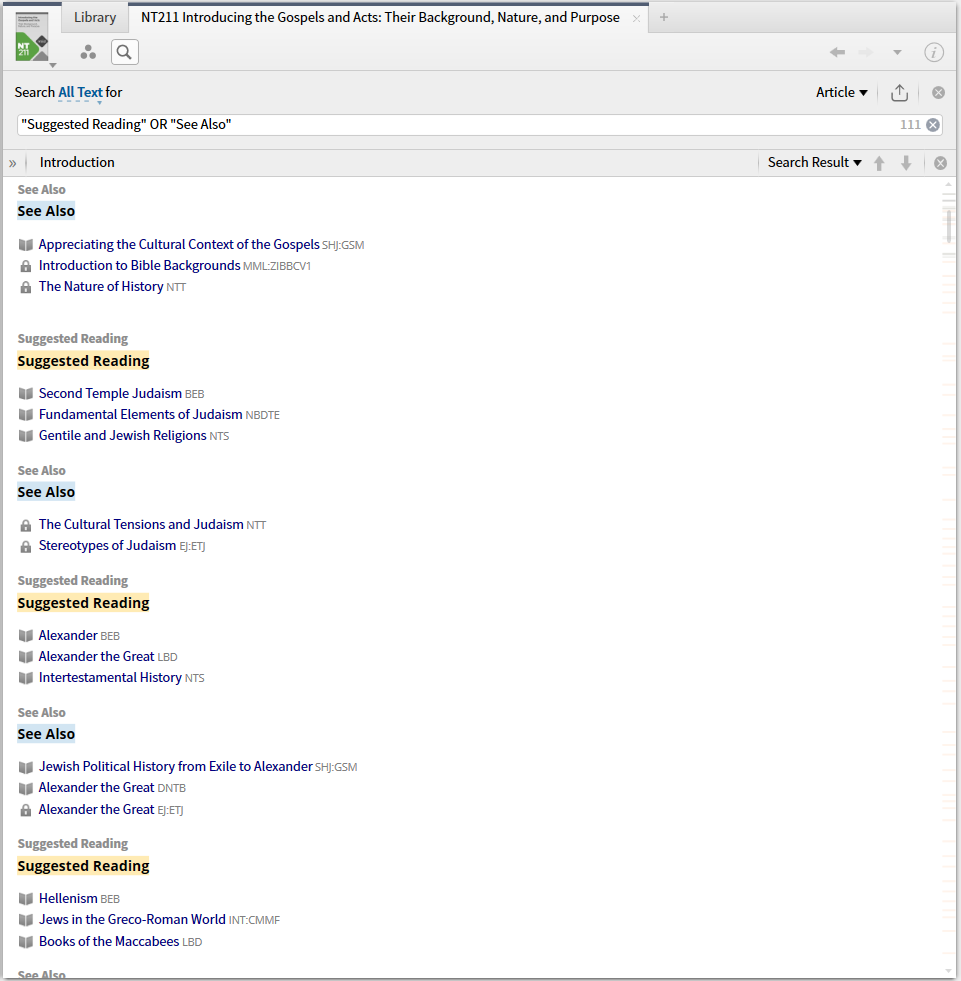
Regarding the "suggested reading" and "see also" books, the courses I've seen so far don't interact with these, so there is no strong emphasis on selling those. Each course has a Faithlife group which shares a note file for these additional readings and a spreadsheet giving the names of those resources and how often each are referenced. Often, they give three or four suggestions that treat the same material, but one wouldn't need to have all of them.
Typically, the courses assume a platinum level library which should give access to most of these readings. I'm not a platinum owner but buy widely beyond the packages, thus I fare pretty well.
Mobile.Ed are much better than the classroom video captures found on Youtube or iTunesU - I personally compare them to high-quality Udemy courses (such as those taught by NT Wright) and find Mobile.Ed better in terms of the full transcript textbook and the complete integration into Logos. The filming by Logos is much more professional (actually too sterile for my liking, but that's taste, not content), too.
For Logos Now users:
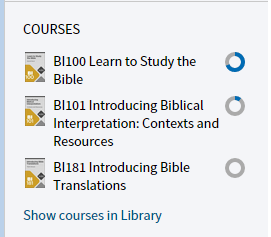
The courses appear on the Home Page and can be accessed from there:
Or one can access the Course Tool from the Tools Menu:
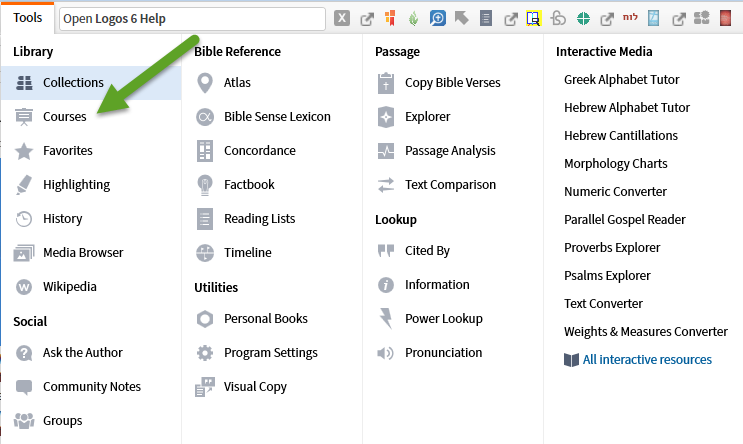
The course may be viewed and read in the Courses Tool: