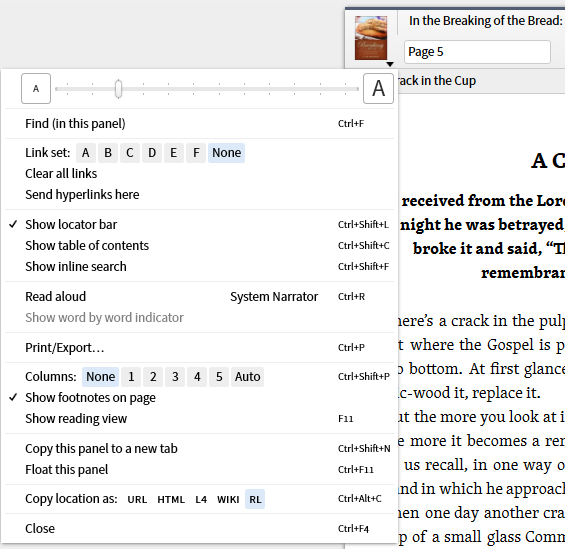
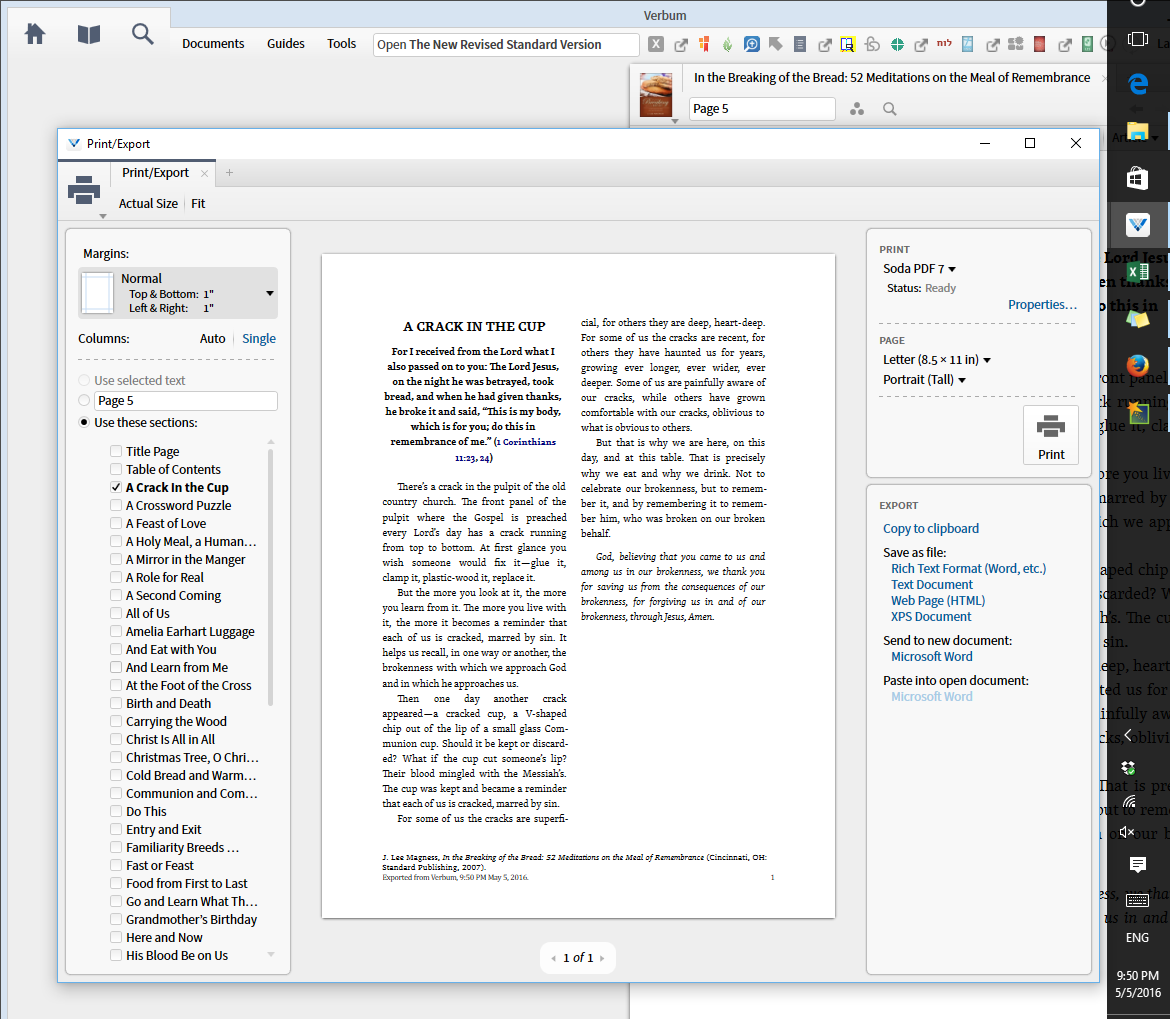
59. Returning to functions that appear on most Panel Menus. The Print/Export function open a floating window. A variety of export and copy functions - clipboard, rtf, txt, html ... are available from this panel.
60. The next group of functions control how the resource in the panel is displayed. The first option allow you to specify the number of columns displayed. None indicates that the resource is to be viewed as a continuous document. Setting any number of columns, including automatic, will put you in page mode with prior and next page navigational icons at the bottom of the page.
61. Show footnotes on page has meaning only if one is in page mode.
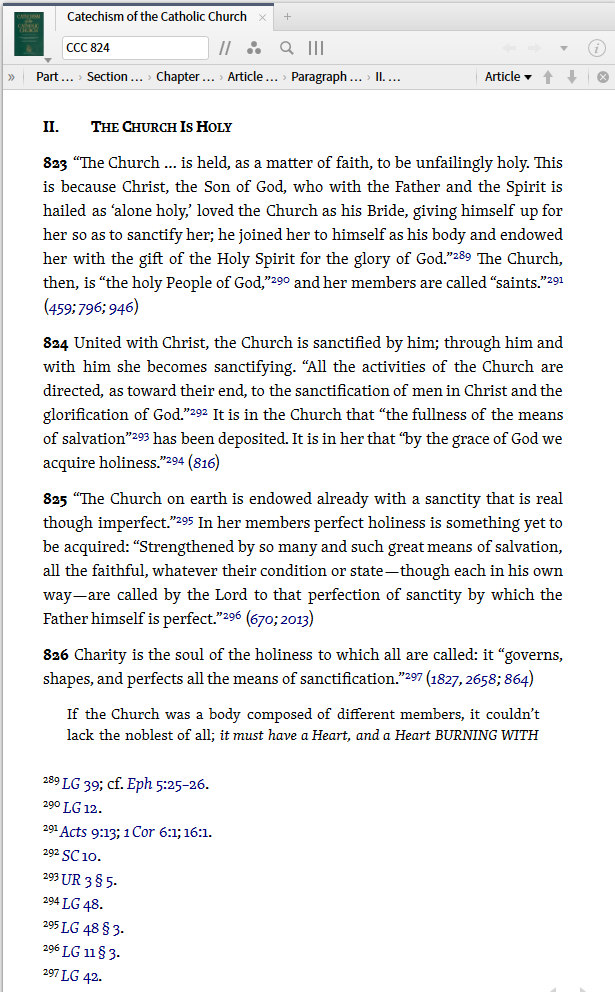
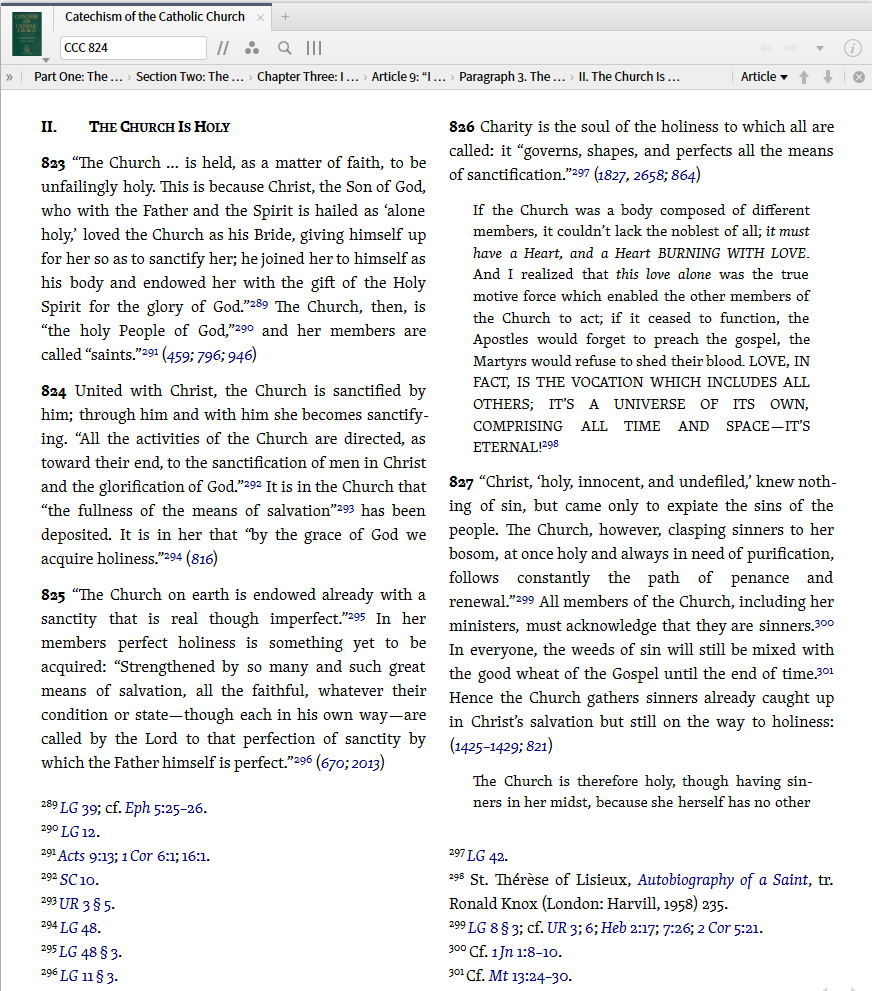
62. Show reading view causes the resource panel to take the entire screen with only navigational function icons showing. One uses ESC to return to a normal panel view.
63. Copy this panel into a new tab opens a second copy of the panel with the same options set as the original.
64. Float/dock this panel allows you to float a docked panel or dock a floating panel.
65. Copy location as allows one to obtain the URL formatted appropriately for:
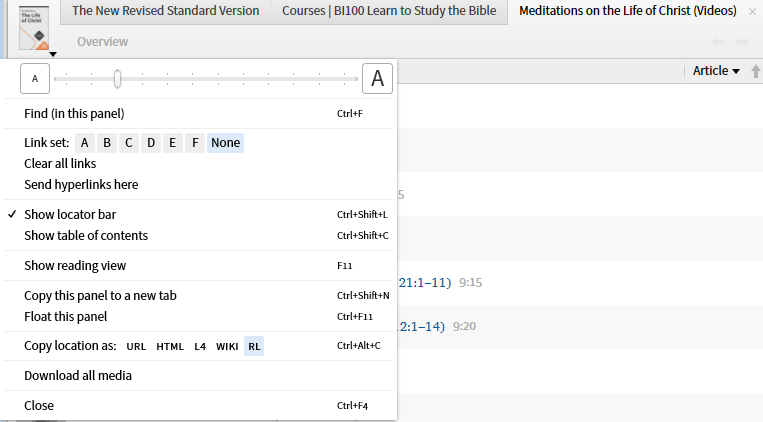
66. Download all media allows you to run media (videos primarily) off your machine rather than streaming off the internet.
67. The final function in the Panel Menu is Close which simply closes the panel.
Okay, now it is your turn to discover what functions I have not discovered that are in the Panel Menu. In preparing these posts I found two functions I had not known existed:
- Show citations for the attachment points in Notes
- Send to Sentence Diagram for Bible Harmony resources.
I would also suggest that it is appropriate to consider what functions already exist in the Panel Menu but not on the resource, document or tool that you would like to see them on. My personal example is the Bible Sense Lexicon on which I would like two additional commands:
- Save as Passage List
- Save as Word List