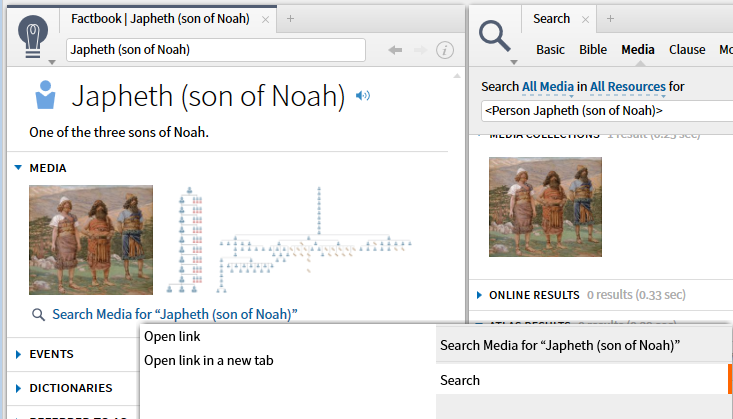
1. The Media Section may include images from several separate sections in the Topic Guide:
- Interactive
- Media Resources
- Media Collections
- Atlas
The Media section provides only a few example media thumbnails. There is a Search provided that allows one to see the "comprehensive" set.
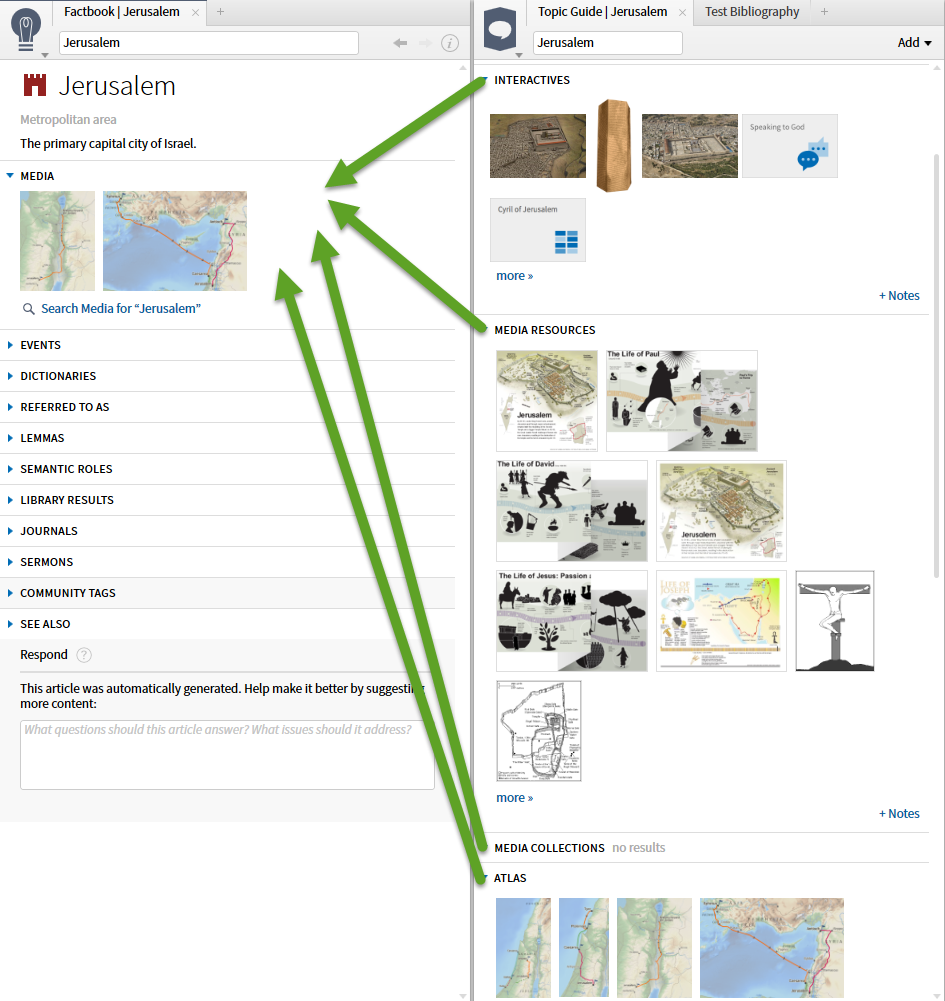
2.The behavior on hover (mouse over) is typically a preview; here it is simply the title of the thumbnail image.

3. The behavior on right-click is typically the Context Menu; here it is a simple menu of available actions.

4. Typical behavior on a reference/link:
- click on link (thumbnail) opens the resource in a position chosen by the system
- Shift-click on link (thumbnail) open the resource in a floating window
- drag-and-drop a link (thumbnail) allows the user to select where the resource opens.
In this particular case, as we have already seen, the "resource" to open may be:
- an item seen only via the Media Browser and stored in the cloud [opens in Visual Copy]
- an item from an Interactive [opens as interactive]
- an item from a tool (e.g. Atlas) [opens as Atlas tool]
- a resource in the normal narrow sense of the term [opens as a resource]
This is an example which opens the Atlas tool.

5. This example opens an Interactive.

6. This is an example that opens Visual Copy.

7. This example opens a resource - Biblical People Diagrams

8. There standard resizing may be especially useful in the context of thumbnails:
- Cntrl+= Zoom in
- Cntrl+- Zoom out
- Cntrl+0 zoom to fit
This is an example of zooming in.

9. This is an example of zooming out.
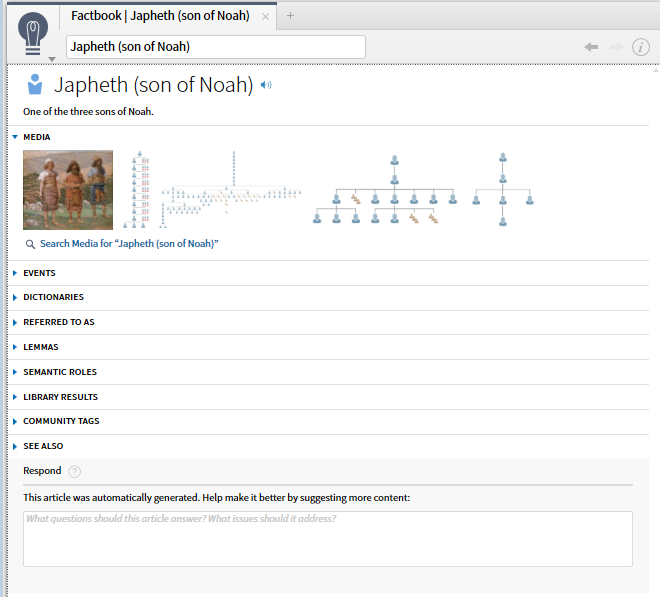
10. Typical behavior on a command link is identical to any other link:
- click on command opens the Search command in a position chosen by the system
- Shift-click on command open the Search command in a floating window
- drag-and-drop a command allows the user to select where the Search command opens.
This shows the results of the Search.

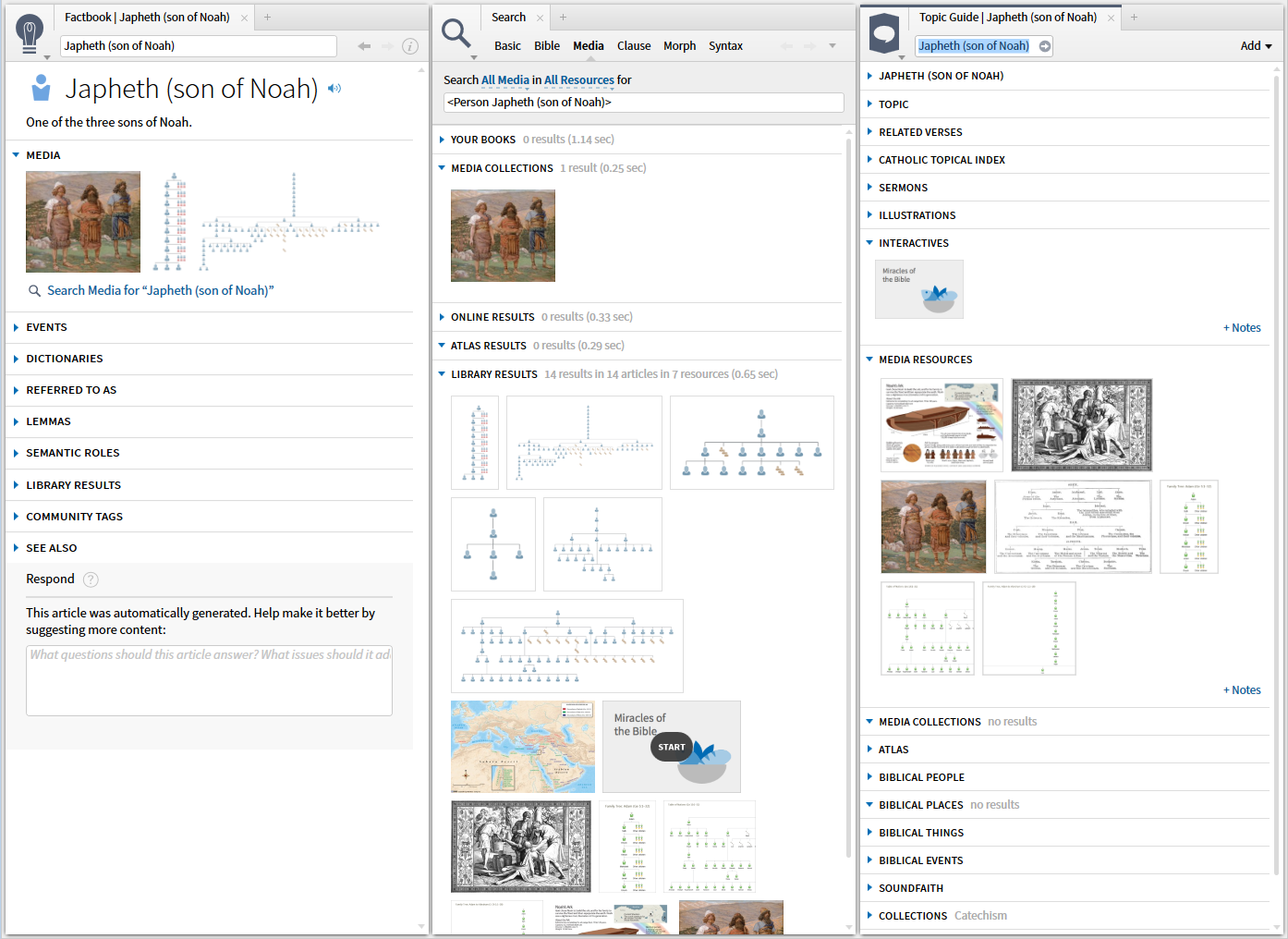
11. To get familiar with what appears where it can be useful to compare the differences between the Factbook, Search and Topic Guide.
12. Mouse-over the Search command line provides a preview:

13. Right click on the Search command provides the expected Context Menu.