How do I invoke the reformat the BDAG feature?
Is this the blog post you are referring to? If so the feature you seek can be found under the Visual Filters icon...the three dots forming a triangle on the BDAG panel. You will have to expand the Resource heading. Under this heading you will find Outline formatting, this is the feature you seek. This feature is active for L6, you don't need LN. I'm not sure if it requires a certain base package, someone else will have to answer this question.
Edit: got a screenshot for you
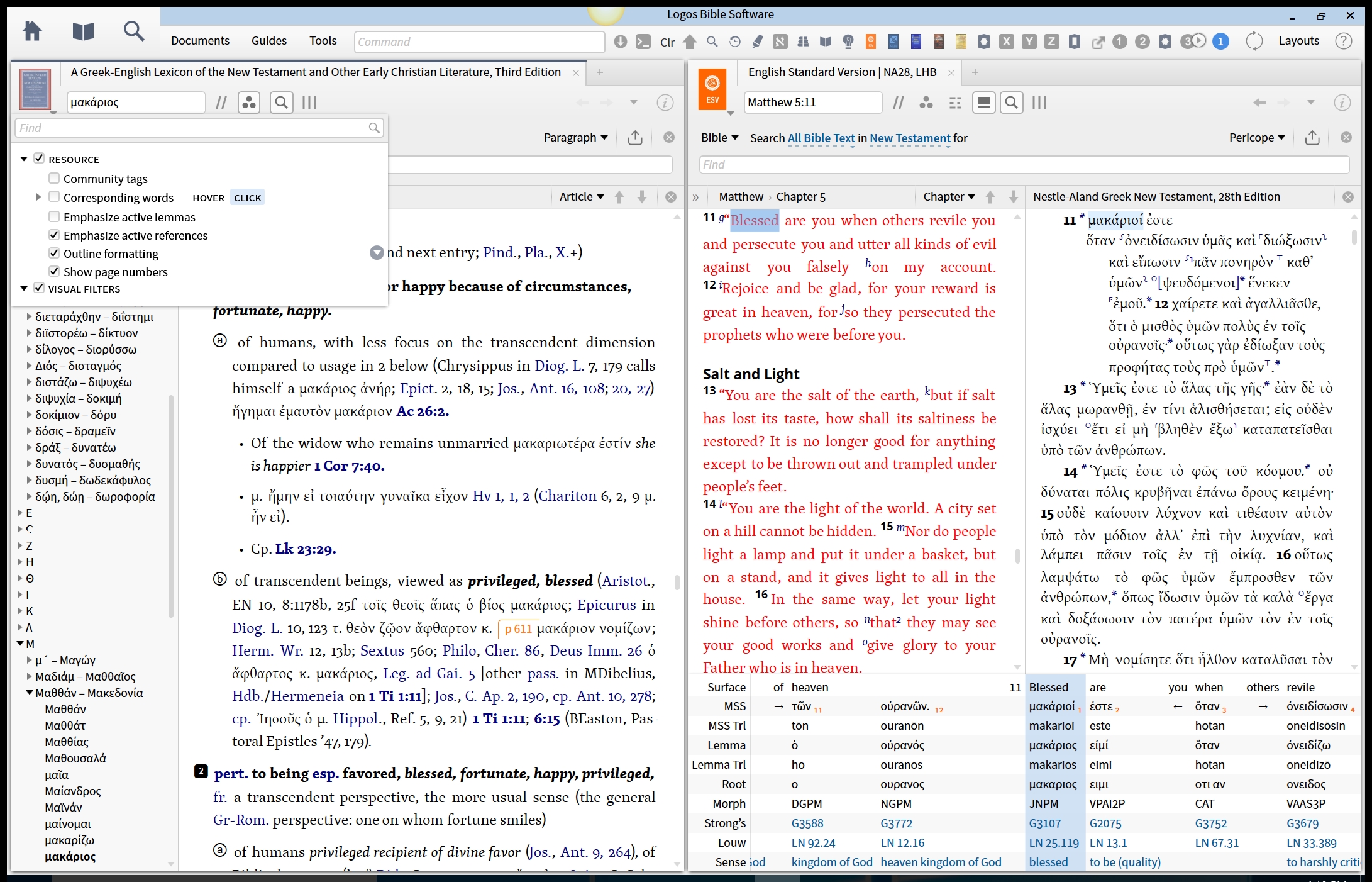
This feature requires Bronze or higher as per https://community.logos.com/forums/p/92686/644219.aspx#644219 (or Feature Crossgrade or higher)
My Bible does not show verse numbers; how do I fix it?
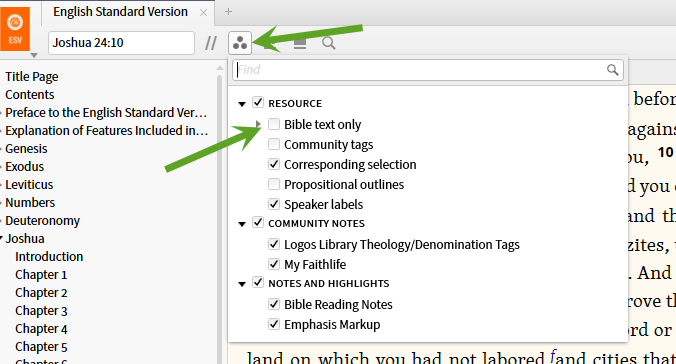
You want to click the little visual filters circle at the top of the resource and uncheck "Show Bible text only."
Here's a visual for Justin's explanation:
How can I use the timeline tool to show when the Biblical texts were written?
You can get some of this information with the Timeline tool. Open the "Type" menu and turn off everything except "Text" under "Arts and Culture". Click on events to see a list of some articles about that event.
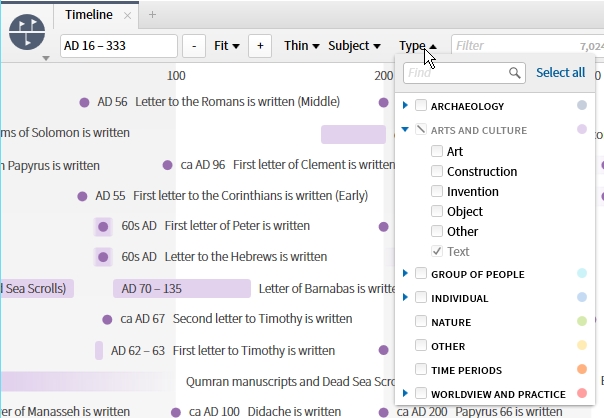
For those interested in the timeline, I found the following:
http://www.bibleodyssey.org/tools/timeline-gallery/h/history-of-the-text-of-the-new-testament.aspx
What are the lines that appear on the scroll bar and how do I control them?
there are two different types of lines that appear in your scroll bar. The first is only visible when a search is run and active. These are represented by orange lines and are called "Search bookmarks." You can turn these off in your program settings by turning the option "Show Search Bookmarks" to "No."
The second set of lines in the scroll bar appear as grey colored lines. These are called "Auto and Favorite Bookmarks." These represent “wear marks” in the scrollbar of resources to indicate the locations that you’ve visited most frequently in a resource. These also appear when you add a location in a resource to your favorites. You can turn these off in your program settings by turning the option "Show Auto and Favorite Bookmarks" to "No."

How can I highlight the verbs in a passage?
Step 1) Select the search icon in your Bible (magnifying glass) for inline search. (If you prefer not to use the inline search, you can instead use the larger search icon in the main menu)
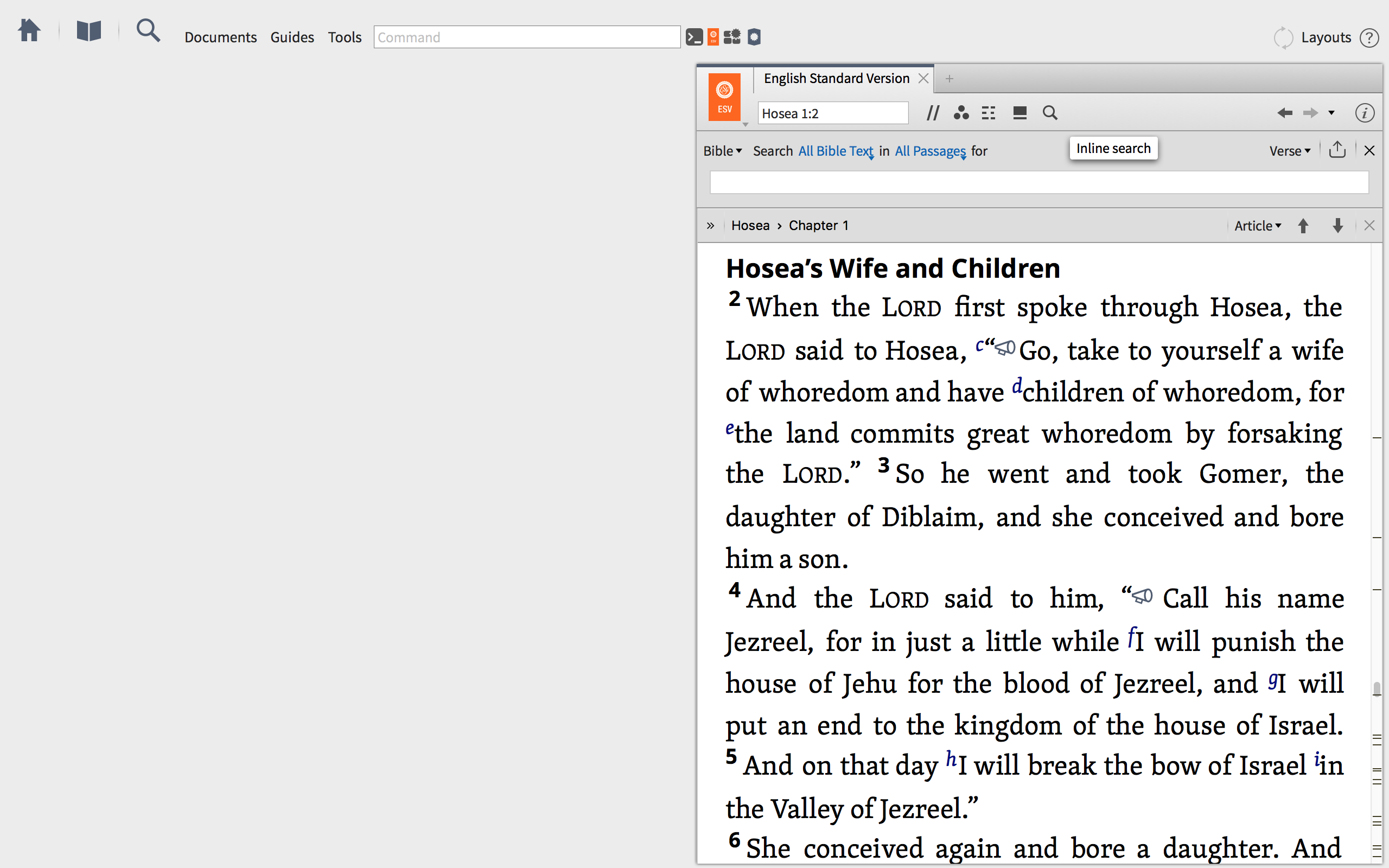
Step 2) Change your search type to Morph.

Step 3) Type the code Graham provided, "@v". (You'll see that Logos brings up a context menu, should you wish to narrow your search further.

Step 4) Narrow your search from "All Passages" to your specified pericope.

OPTIONAL: Step 6) Upload search into a visual filter.
For easier reading, you can upload this search into a visual filter. Just click the "Sent To" icon in the upper right hand of the Inline Search bar and select Visual Filter.

Now, when I specify color formatting in my visual filter, bring up the passage again, and enable visual filters, all my verbs are highlighted.

Any further questions, don't hesitate to email me directly at Jonathan@LearnWithLogos.com
How do I search for all forms of a word in the KJV?
Issue:
I know I can use the asterisk (*) but should that be necessary? Further, KJV endings are particularly difficult in Logos as "make" and "maketh" are considered two separate words while searching that English version.
Response:
It is an option you can toggle on and off.

"Match all word forms" uses an algorithmn that was designed for modern English word stems.
I would create a collection including just the KJV and the NKJV and search that for the word "make." Verses that say "maketh" (like Exodus 4:11) will show up because of the hit in the NKJV, but will be written in your top Bible (presumably the KJV, if searching for archaic endings is a priority). "Top Bibles" will have more false positives and this might miss a few with some words (although it doesn't with maketh).
Search the KJV for make*
You can't avoid being explicit e.g. say, saith --> use commas as this makes a list of words that are OR'd
Can I receive a reading plan via email?
No - but they can be shared via Faithlife.com
How do I find as many cognates for a given Hebrew word as possible?
your Hebrew-English lexicon can help you. Brown, Driver, Briggs arranges all its entries by word roots, thus grouping words sharing common roots for you. The Hebrew and Aramaic Lexicon of the Old Testament and the Dictionary of Classical Hebrew both have lists of words sharing a common root at the end of many entries.
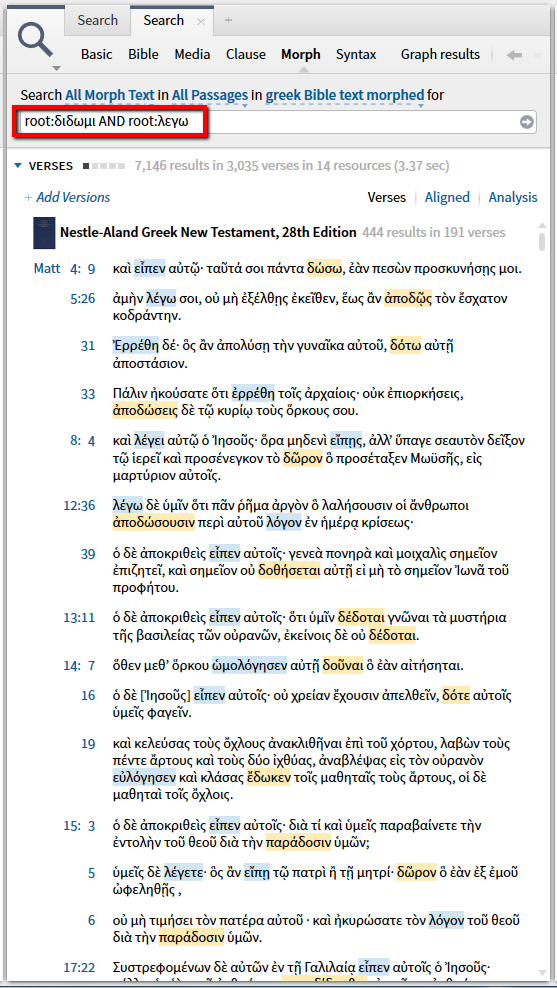
run a morph search "root:διδωμι AND root:λεγω" (note that I not even needed to type Greek characters, I could write root:g:didomi and then root:g:lego).
Why did I just get downloads for resources I don't own?
You don't have a mobile ed subscription, do you? (check your account for subscriptions)
It's because you're a member of the Faithlife Free Book Group. It's a temporary license for this month. See here:
https://faithlife.com/faithlife-free-book/activity
How can I adjust the text size in a book I'm reading?
Open the Resource Panel Menu (upper left - icon). The first item should be a text size slider.
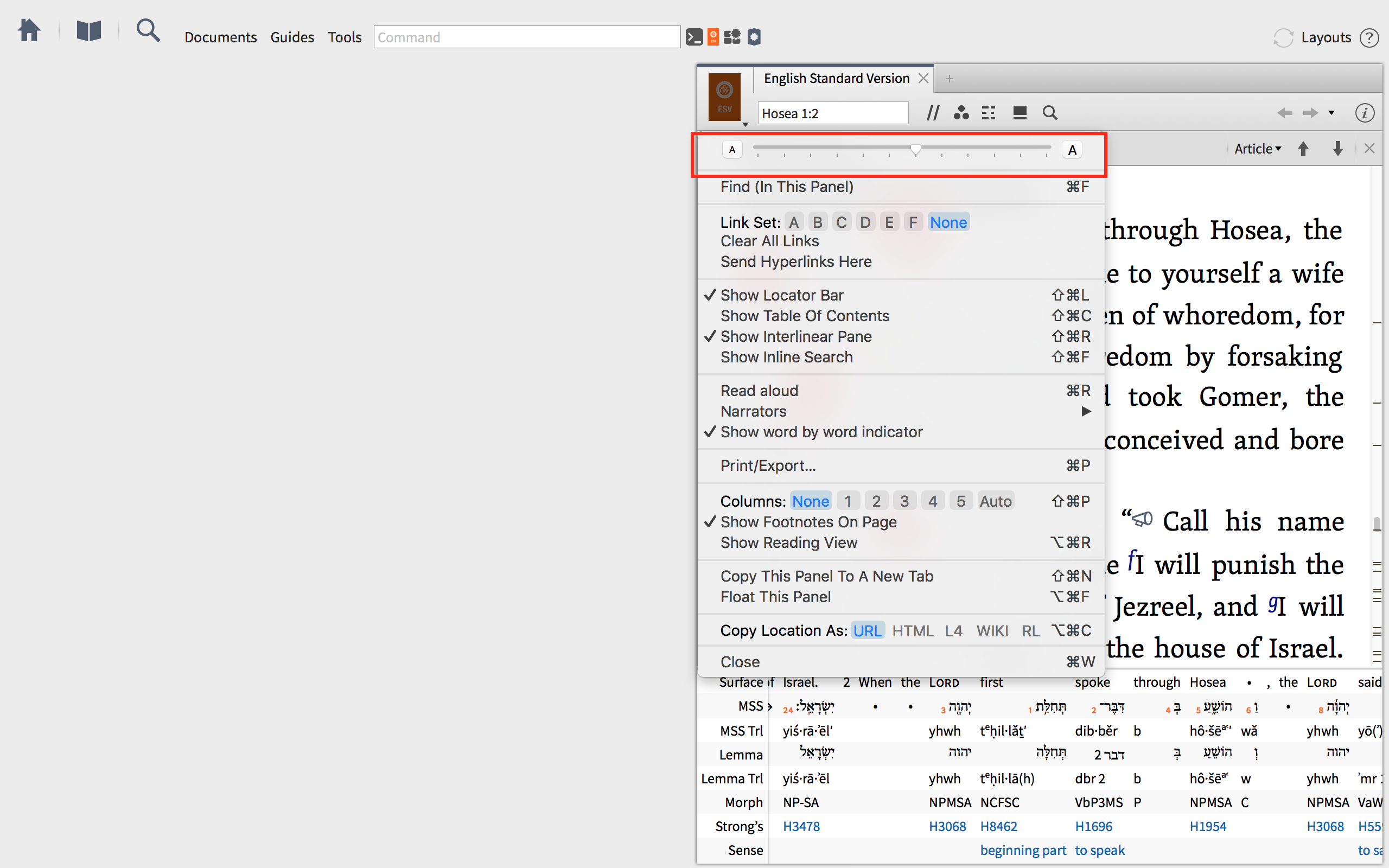
For those visually inclined among us. 
Is it possible to view the book labs offline?
When have internet access, can download all media for "Look at the Book Labs (Video)"

After download is done, the videos could be viewed offline (without internet access).
Can I search for specific highlighting style(s)?
This is possible - see the definition in the Help File