Using 2 Bibles (e.g. the ESV and NA27) how do I get a clicked word in one to be highlighted in the other?
You'll need to turn on a visual filter that is - since this summer - now called "corresponding words" (formerly it used to be called "sympathetic highlighting")
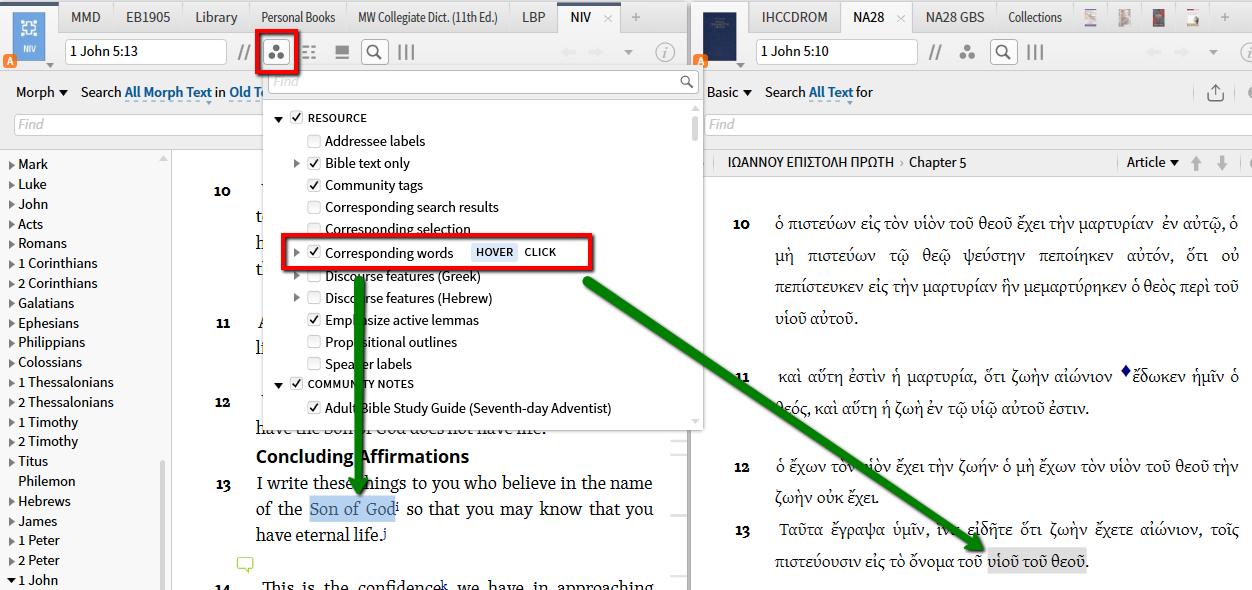
I think he may be looking for "Corresponding Selection". The "Corresponding Words" selection highlights within the same Bible and not the other text (ensure that it is checked in both resources).
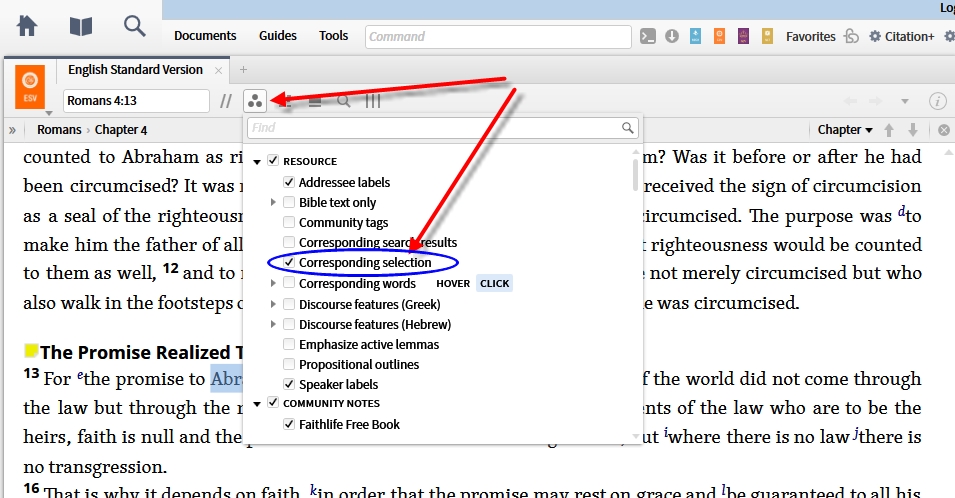
• Corresponding selection — Highlights the parallel text in a second Bible when you select a word or phrase in the first Bible, if both have a reverse interlinear (or are fully-tagged Greek and Hebrew texts).
• Corresponding Words — Highlights words in open resources that match the selected word. Options are available to base the relation between words on word number, surface text, lemma, or root word. By default the words for this filter are selected on mouse hover, but can be set to update on left-click instead. This feature requires a Logos Now subscription.
Logos 6 Help (Bellingham, WA: Faithlife, 2015).
How do I find every instance where Jesus makes a statement about knowing God\the Father?
In Clause Search (NT) I used Person:God Person:Jesus Sense:to know personally
Why doesn't my (old) World List work with the Reader's Edition feature?
That word list is not compatible with the Reader's Edition Interlinear feature because it does not include extra data that is required for the feature to work. Look for other word lists in the Word Lists for Flashcards Faithlife group that indicate they support audio. These should work as desired.
Ownership of an audio dataset is not required, but it does make it easy to identify word lists that contain the needed data, because if you own an audio data set, then word lists with the correct data will show an icon next to the words that allow you to play a recording of the word.
I would recommend the section in the help file in the application on Word Lists. This should contain the information you need to get started: https://ref.ly/logosres/logos4help;hw=Word_List_Document
You will want to either right click on words in your Bible, select the lemma on the right, then choose to add them to an already open word list, or use the Add Lemma box at the bottom of the word list to add lemmas. When you add lemmas, you can use "g:" at the start to allow you to enter the English transliteration of the desired lemma (try typing: g:angelos).
You may want to do each chapter of vocabulary as a separate word list document to allow you to turn them on individually in the Reader's Edition as you learn them.
After you get the lemmas added, you may want to edit the Section field to include the chapter name. You may also want to edit the Gloss field to match the gloss provided by Mounce.
It appears that the Faithlife Group already contains word lists for chapters 4 and 6 ("BBG3 - Chapter 4 with audio", and "BB3 - Chapter 6 with audio").
If you do other chapters, you might consider sharing them with the group (using the Groups tool, or the "Share documents" link in the Documents menu). That way other people can benefit from your work!
How do I access the translation ring for Hebrew to LXX Greek?
If you’re talking about seeing the translation of a Hebrew word into Greek in Bible Word Study, this is already available (if you own the necessary LXX resources). The LXX should appear as another option in the Settings menu of the Translation section.

Why doesn't "Match all forms" work in French?
Stemming (the technology behind Match All Word Forms) is not currently implemented for French.
. . .
This typically requires us to bring a native speaker on staff, so that they can test that the program performs as expected, provide missing translations, and help English-only software developers who have questions about how the software should perform.
How do I control what information Faithlife tracks on my use of Logos?
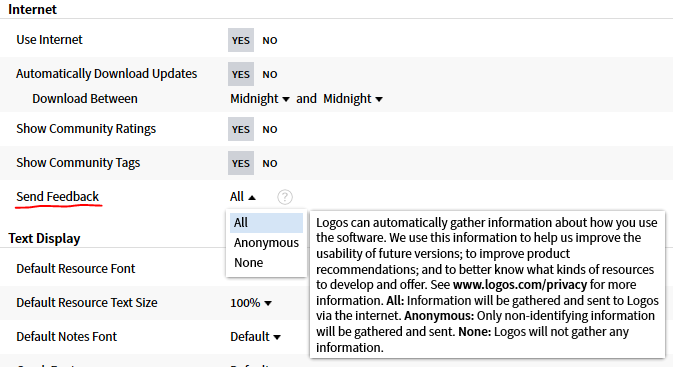
there's a setting in the desktop app for how you'd like to send feedback about your app usage. It looks like this:
It's also available in the mobile app, and it looks like this:
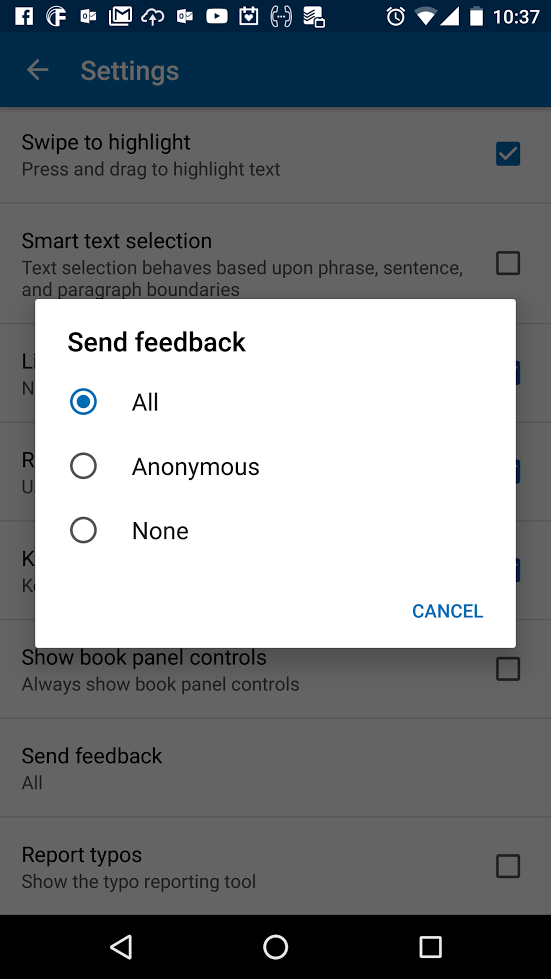
By default it's set to All, which means your usage feedback is not anonymous. You can set it to anonymous, or you can disable it entirely.
You can learn more at https://www.logos.com/privacy.
The primary intent of the EULA is to tell you what you can do with your license and doesn't cover all of the issues covered in our privacy policy (which tells you what we can do with your private information). You should familiarize yourself with both.
How do I copy a picture to Power Point?
It works for me:

Also, just to make sure, I'm assuming that you have "Image" selected?
How do I get a full reference in a Bible copy and paste?
You can use Copy Bible Verses tool and create a new format. I used this styling to create what you suggest, only with a bold reference and version. Remove the <b> and </b> to remove the bold.
(You create new styles by clicking the style name in the sentence "Copy Simple Paragraphs from ESV to Microsoft Word", or something like that, and then choosing 'Create a new style' in that popup.)
%NoCharFormatting
%NoRedLetter
%NoFootnotes
%NoCitation
=Header
<p><b>[FullPassageRef] ([Version]) </b>
=ForEachVerse
[VerseText]
=Footer
</p>
Why does the concept "city" appear in the Context Menu?

Select "Cities" on the context menu, then choose Factbook. In the Factbook that opens, scroll down to the Cultural Concept section.
You'll see that "Cities" is associated with "Judith 1:1-4", so the context menu is showing the tagging as it exists.

That just raises two further questions:
- Is tagging "Judith 1:1-4" with "Cities" a useful tag?
- Is it useful for the context menu to show these tags that are applied to larger ranges of text (than an individual word that you clicked on)?
(You're welcome to give your feedback on those questions and I can pass it along to our data and UI teams.)
Note that in most Bibles, there is one section (on the context menu) for word-level data, then a second section for this passage-level data. It may have been confusing in this instance that there's no word-level data, so it went straight to showing the passage-level tagging.
What fonts does Logos use by default?
The default font is Skolar.
NB: Default sans serif font is the same as the UI font, Source Sans Pro
. . .
Some time ago Faithlife decided no longer to ship the fonts necessary for Logos (meaning: they were installed and subsequently available for all programs - i.e. sitting in the fonts direcory as you expected) but to embed them so that they only work in Logos. Possibly this was the time they switched to Skolar since Skolar is not a free font, so it's probably a much less expensive license to embed it than to ship it.
For some reason they not only did this, but also removed all fonts they previously had shipped from the systems those were installed on
. . .
Meanwhile we got this support page: https://www.logos.com/support/logos6/windows/missing-fonts
How do I export a portion of a resource including the original page numbers?
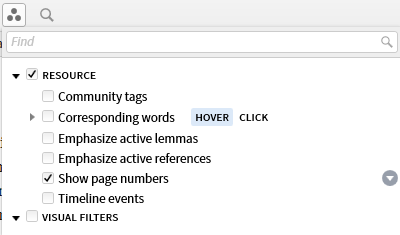
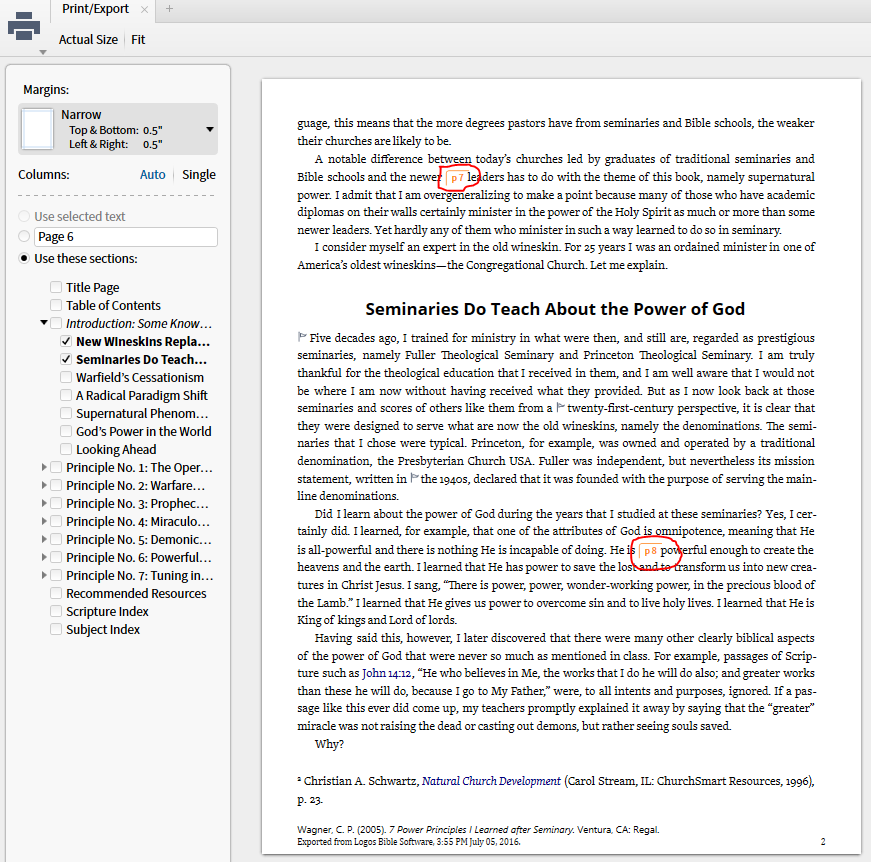
Is "Show page numbers" checked?
Print/Export shows page numbers:
How do I obtain the bibliography entry in the Turabian citation style?
I think that the Resource Information screen (available by clicking the circled (i) in the top-right of a resource panel) shows the Turabian citation in the Bibliographic style.
How do I freeze the tool-tip gloss?
If you are referring to the gloss that comes up at the bottom of the resource - this does change as you move your mouse and you can't freeze it
However if you open the Information Tool, you can see the gloss there

You can set the Information Tool to update on Hover or Click

.how do I copy the gloss
You can do this in the Information Tool by right-clicking on the section heading

How do I turn off the popular highlights underlining?
Select Visual Filters Icon the triangle of three shaded circles> expand Resource heading find Popular Highlights this is what you use to turn on and off this feature by checking and unchecking.
.png)
Just to complete the advice you got: if you really dislike them, you can turn off this feature for all your books in one go:
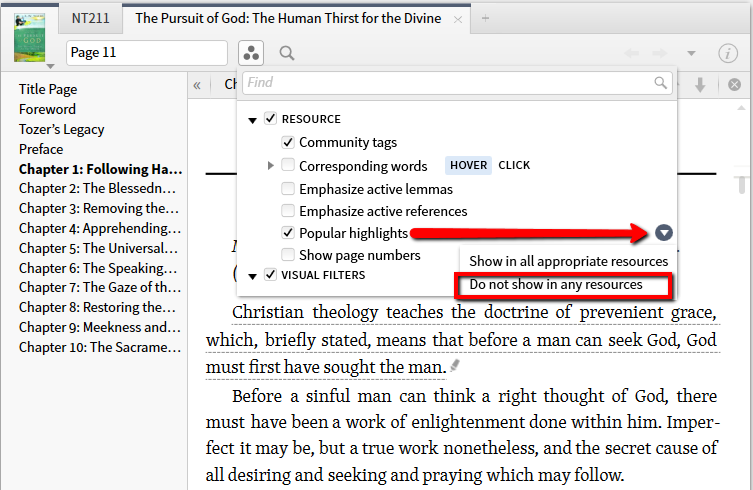
(and you can turn it back on for all of your books as well)
[quote]
Note: the option will not appear in resources that have no popular highlights to show.