Documentation
Known requests:
Standard elements:
Data source:
- curated dataset (DB:ANCIENT-LITERATURE) See documentation for list of included resources
Standard functions:
- Copy: Section Bar Menu
- Export: Panel Menu
- Link address: Panel Menu
- Print: Panel Menu
- Refresh: Section Bar Menu
- Save as Passage List: Section Bar Menu
Use the section to answer questions such as:
- What did the early church fathers say about the passage?
- What was the early rabbinic interpretation of the passage?
- Was this understanding unique to Christian sources or more widely accepted?
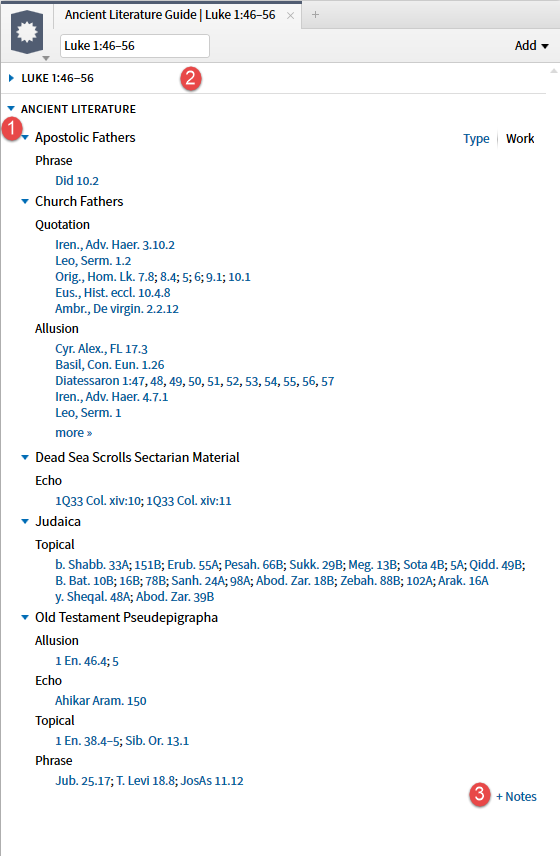
I. The Ancient Literature section may be expanded/collapsed in three ways:
- Using the triangle (1) to toggle between expanded (downward pointing) and collapsed (right pointing)
- Clicking on the Section Bar (2) will also toggle between expanded and collapsed
- Using the Expand/Collapse commands on the Section Bar Menu
TIP: Note that subsections will retain their expanded/collapsed status across closing of the Guide or Guide section. Therefore, to speed up the next opening of the Guide, collapse all sections before dismissing the Guide.
There is a standard Notes element (3) at the bottom of the section.
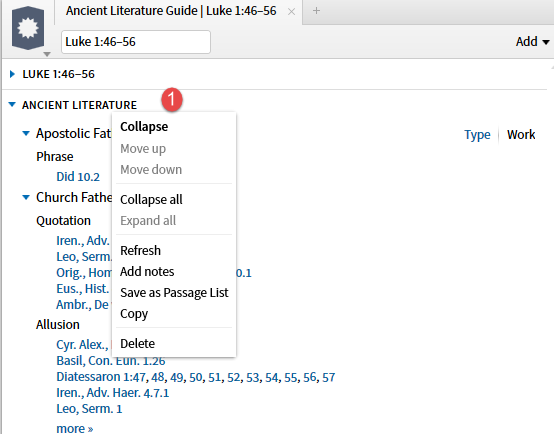
II. If you right click on the Section Bar a set of standard functions appear. The first group apply only to the section, the second group apply to all sections, the third group are functions of specific use in this specific section, the final item removes the section from this instance of the Guide.
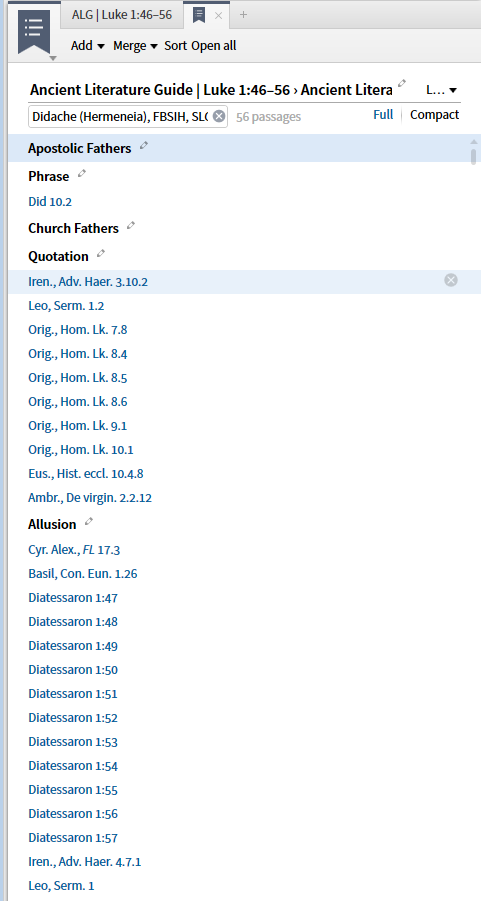
The option to Save as Passage List deserves special mention. The Ancient Literature guide section does not provide a short sample of the text as the Search results do. However, you can save the references as a Passage List.
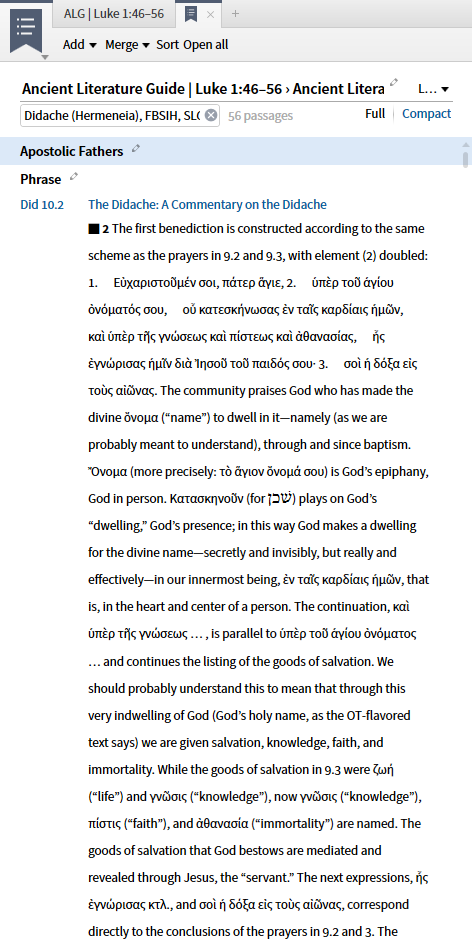
When you select the Full option in the Passage List you can see the actual contents of the references.
III. The data for the Ancient Literature Guide is not a simple search of your library - it comes from curated data held in a dataset:
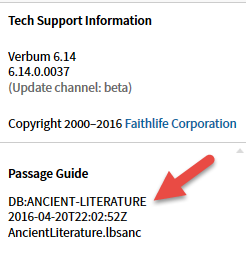
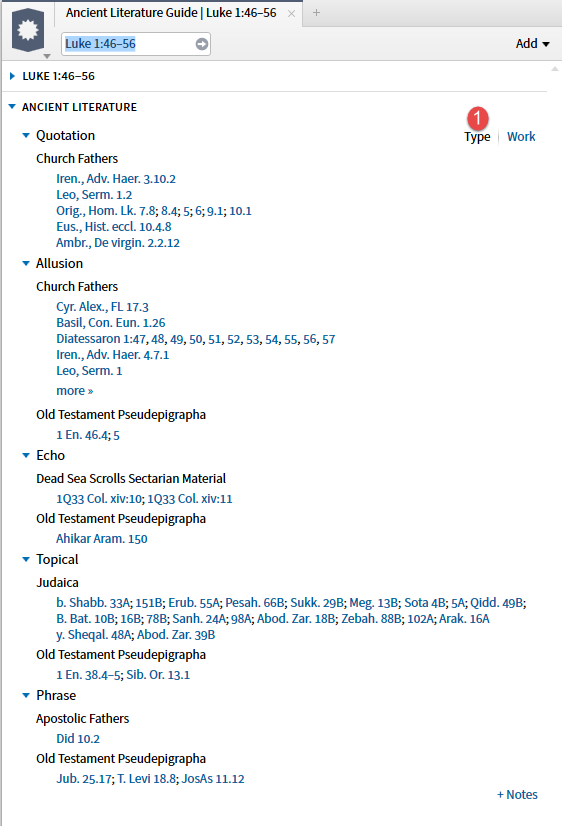
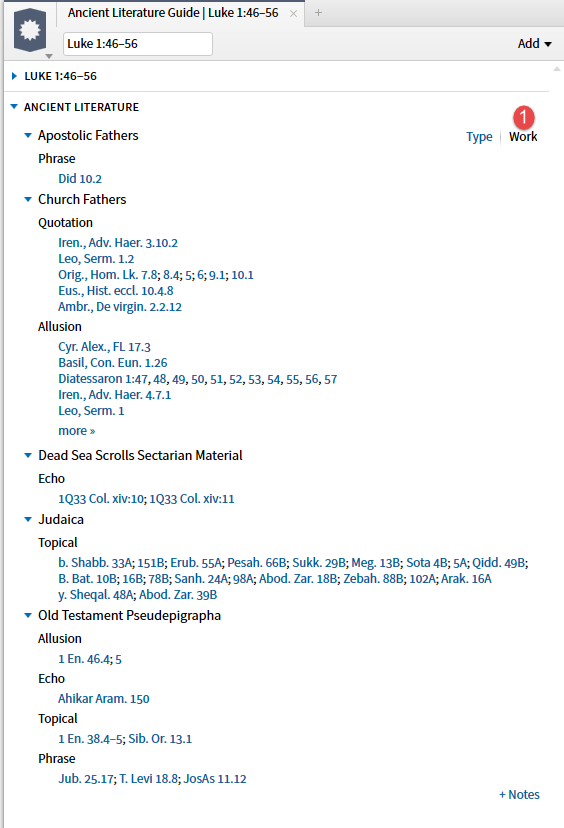
The data may be presented to you in two formats:
- works within reference type - click on type - shown immediately below
- reference type within works - click on work - shown in the second shot below
The precise ordering of the entries is described in the dataset documentation.
[quote]
Question: What determines the order of the sorting of references in a particular category?
Answer: Each data type declares its own sort order, so this order is followed for collections of links that use the same data type. For categories that reference more than one data type (such as Church Fathers and Old Testament Pseudepigrapha) data types are sorted alphabetically by data type name.
Rick Brannan, Ancient Literature Documentation (Bellingham, WA: Faithlife, 2015).
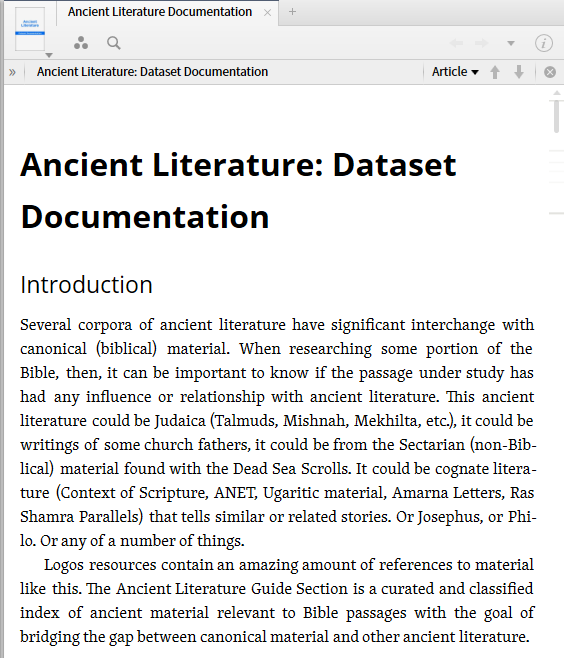
IV. The dataset is documented in Brannan, Rick. Ancient Literature Documentation. Bellingham, WA: Faithlife, 2015. This documentation provides useful information:
- definitions of the types of references
- definitions of the categories of works
- a list of the resources covered by this dataset.
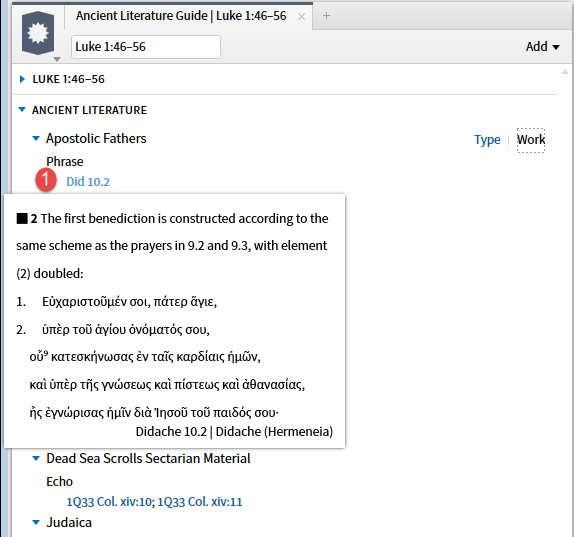
V. Hovering over a reference provides a standard preview box. The resource for the reference is determined by your library priorities.
The links go to your preferred resource (for whatever data type that is). You can use Parallel Resources to get to other resources.
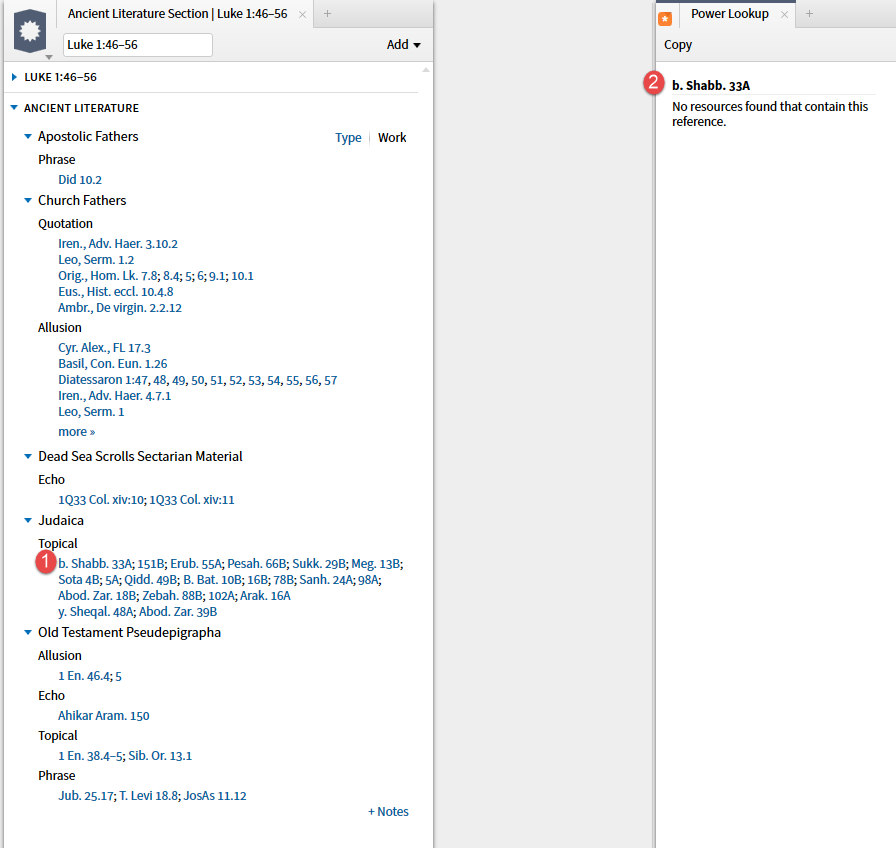
Also, if you click on the links to resources your don't own, Power Lookup should let you know which resources would open if you had them.
VI. Right-clicking on a reference opens up a Context Menu. In the first image, "Selection" options are shown.
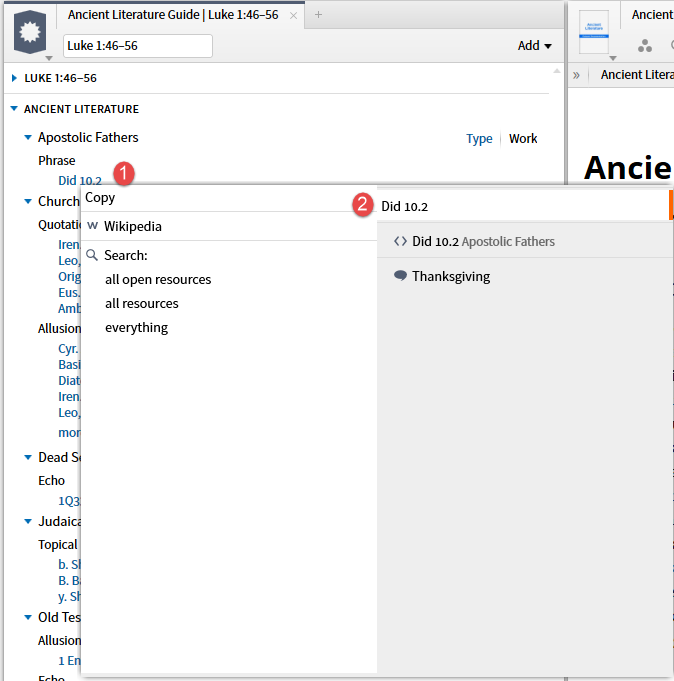
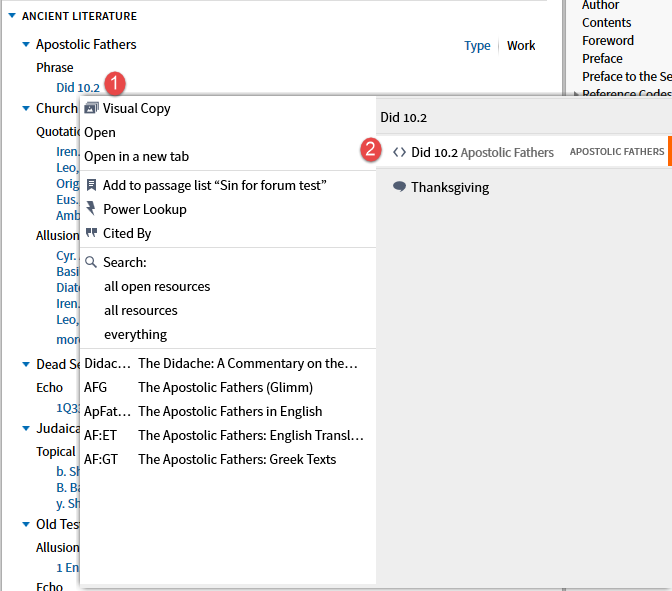
When the second option, Apostolic Fathers datatype, is selected the resources (top 5 by priority) you own containing the reference are shown. (I have requested a Facebook link be added here which would require the expansion of Factbook.)
TIP: to find the resources you own that contain a reference you may use the Context Menu (shows top 5) as shown here or the parallel resources (shows all) option on the open resource panel.
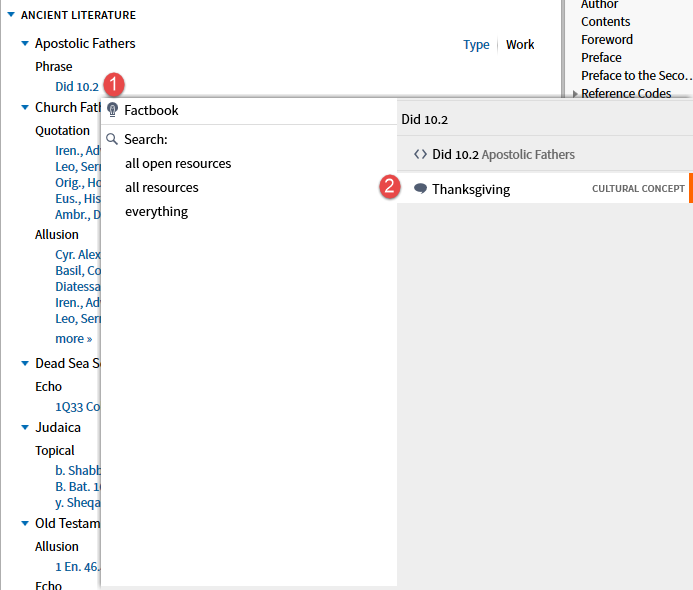
The final option in this particular example is Cultural Concepts. Options other than Selection and datatype are context sensitive.
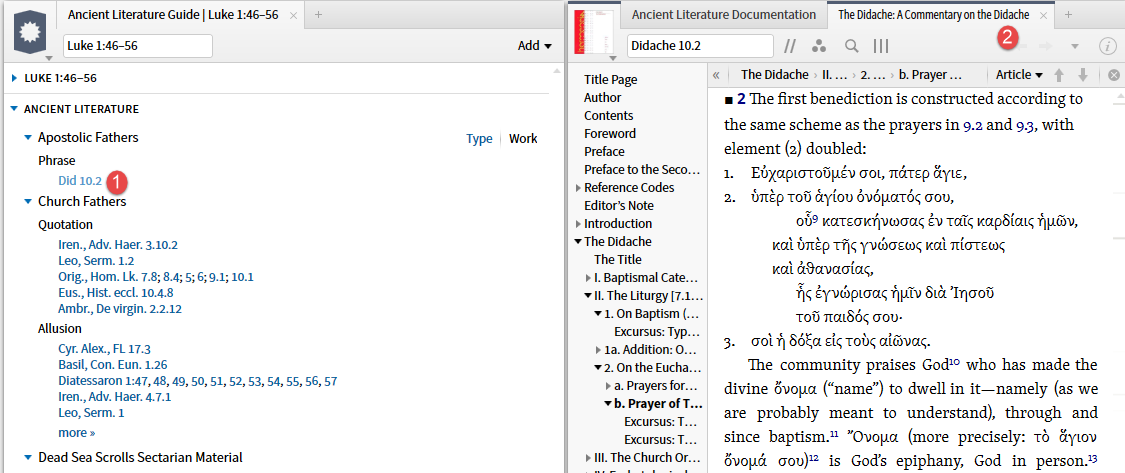
VII. Clicking on the reference will open a resource containing the reference.
[quote]
Question: When multiple link targets are possible (e.g. editions of Josephus) how is the target of the link chosen?
Answer: Ancient Literature uses data type references. These are like Bible references for non-Bible sorts of things. When more than one target is possible, resource prioritization determines which target is preferred. Resource prioritization can be controlled through the Library.
Rick Brannan, Ancient Literature Documentation (Bellingham, WA: Faithlife, 2015).
SHFT-click will open the resource in a floating window.
CTRL-click will open the resource in a new tab.
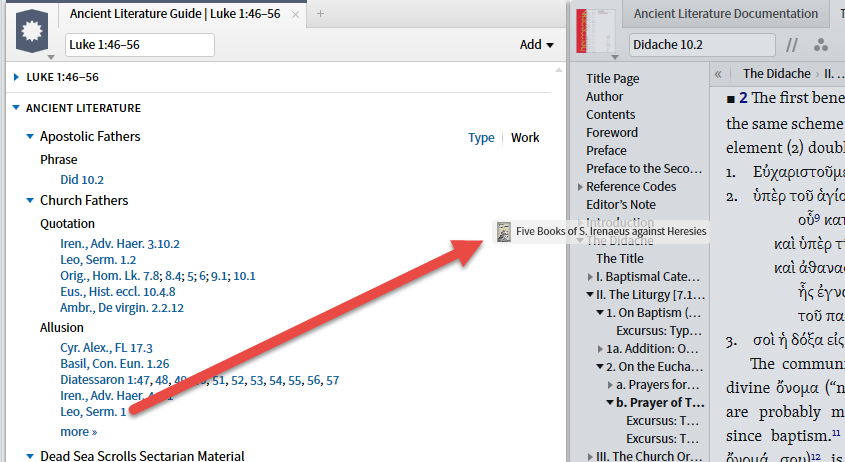
VIII. You may also drag-and-drop a reference to open it.
IX. Initially a limited number of references are displayed. When there are more works in a category, "more" is provided to allow expansion.
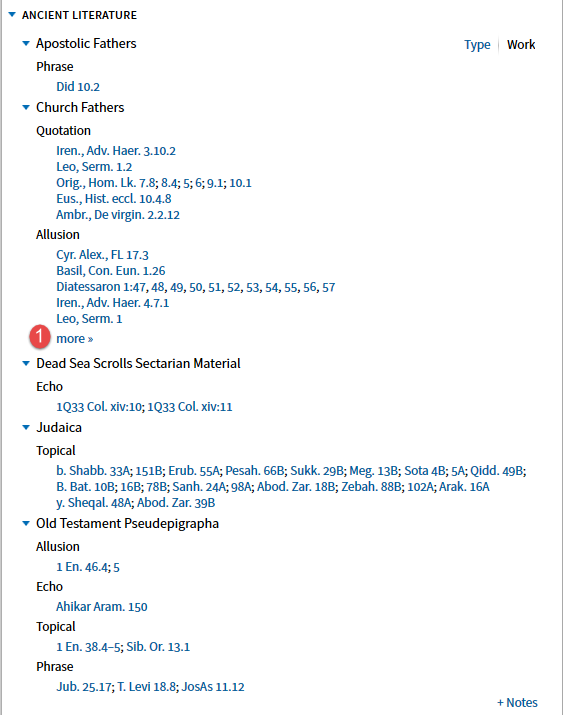
This shows the expansion. Note that there is no way to contract the list once it has been expanded. You can, of course, use the arrow-head to expand and contract each section of the list.
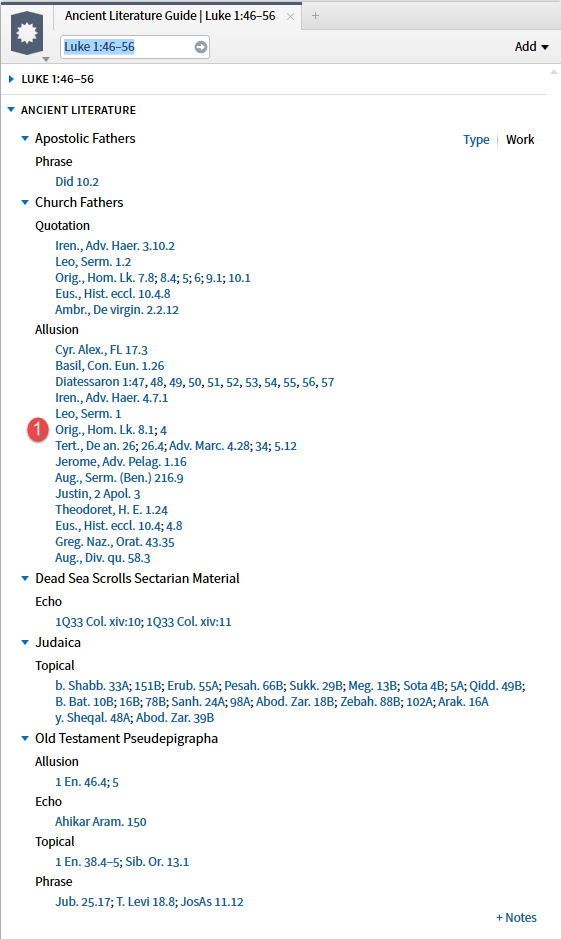
X. As shown above "more" indicates additional works; ellipses on the other hand indicate additional references within a work. Note I had to expand my example range to illustrate this.
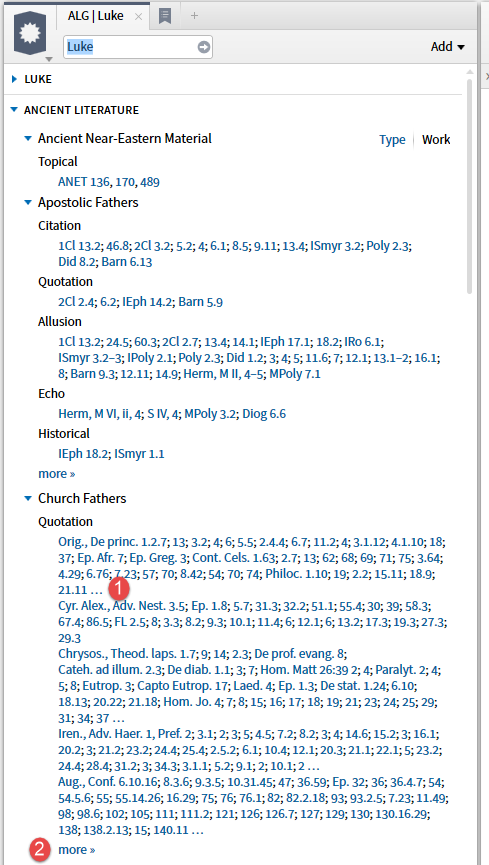
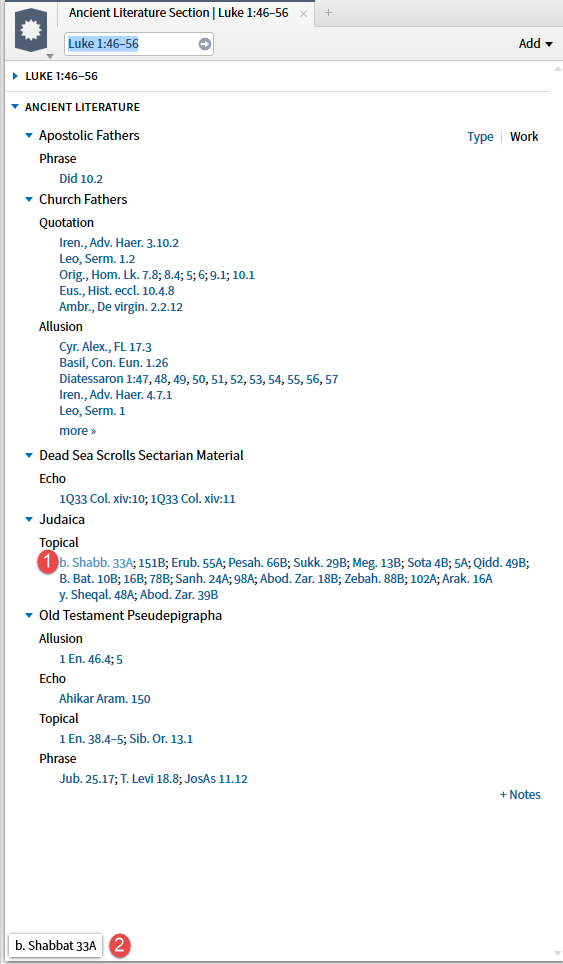
XI. When you do not own a resource, mouse-over will show an information box with a full title.
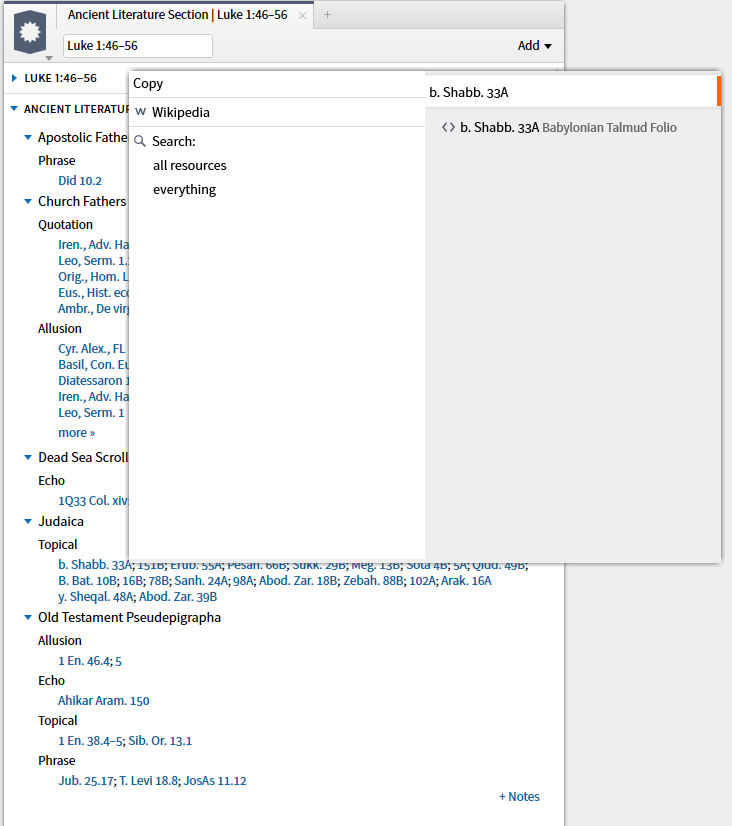
Right-clicking on a reference to an unowned reference will generate a truncated Context Menu
Clicking on an unowned resource will open the Power Lookup tool with a "not found" message. In some circumstances this will provide a link to the Logos store.
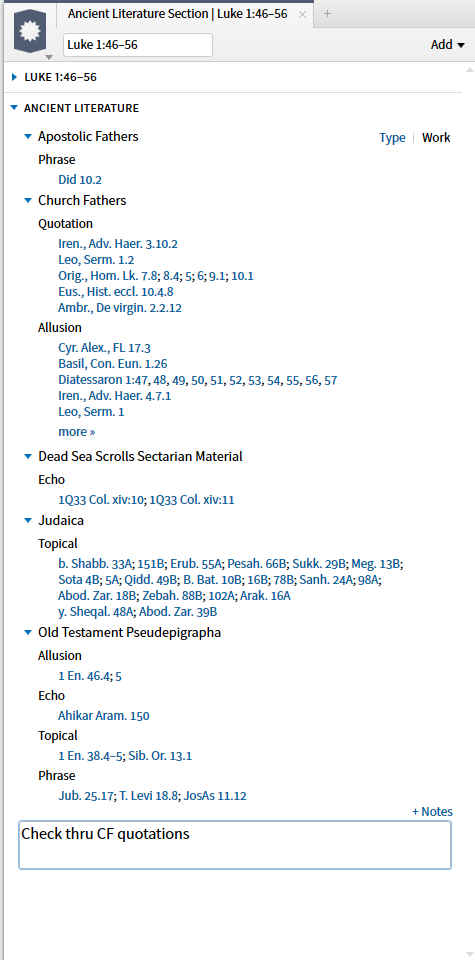
XII. I use the Note area to maintain my research status notes if I leave the guide to come back to later. Remember that this will cause the Guide to be automatically saved which some users find annoying. The system does warn you when you bring up a guide that overlaps a saved guide - something I was unable to illustrate.
Note that you may also use a Passage List (see II above) as a work list, deleting or moving items into sections demarked by headings (useful, not useful, not reviewed) as a way to track your progress.
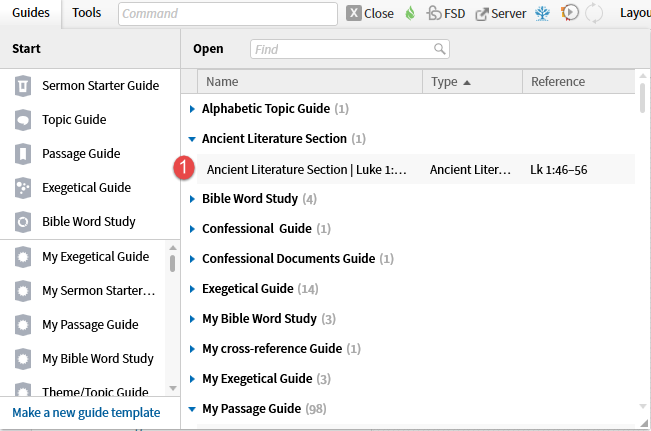
Note that the saved guide is available in the Guide Menu.
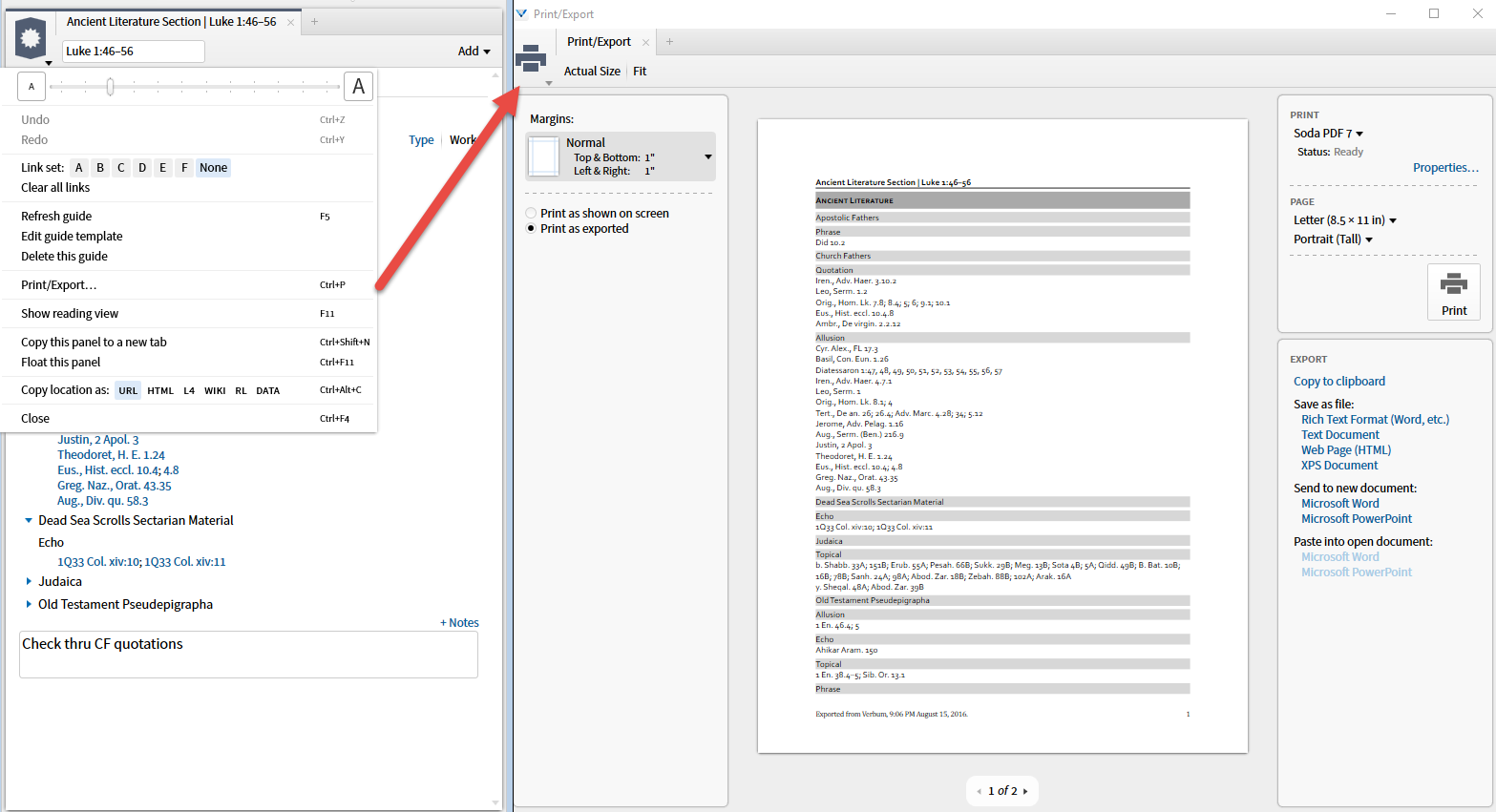
XIII. To Print or Export the information in this section, use the Print/Export function in the Panel Menu.
This is my first cut a making Tips of the Day fit into a wiki-documentation index. I intend to come back and make links to posts on the Section Bar Menu and the Context Menu. I'll come back and add a "how to use in real life" later today or tomorrow.
I'll count on you to tell me of other issues and suggestions ... and any neat tricks you have discovered.