Is there an easy way to locate where the various Logos files are located on a computer and how much space they are consuming?
C:/Users/[Windows Login Name]/AppData/Local/Logos
And then dial down from there to the various folders.
The biggest folder is probably your resource folder which will be:
C:\Users\[Windows Login Name]\AppData\Local\Logos\Data\[random number]\ResourceManager\Resources
EDIT: BTW, Be careful! You can really mess things up, if you start moving or deleting files in these folders (unless directed to do so by someone who knows what their doing)!
The wiki has information on where the resources are installed.
To determine disk space usage, right-click on the Logos folder and select Properties (PC) or Show Info (Mac).
FWIW It's really a matter of no concern if you have even a small drive. I have a laptop with a small 128GB SSD and a very large Logos library. There's still plenty of room to work with and more so with cloud storage of documents.
Thanks all. Exactly the info I needed.
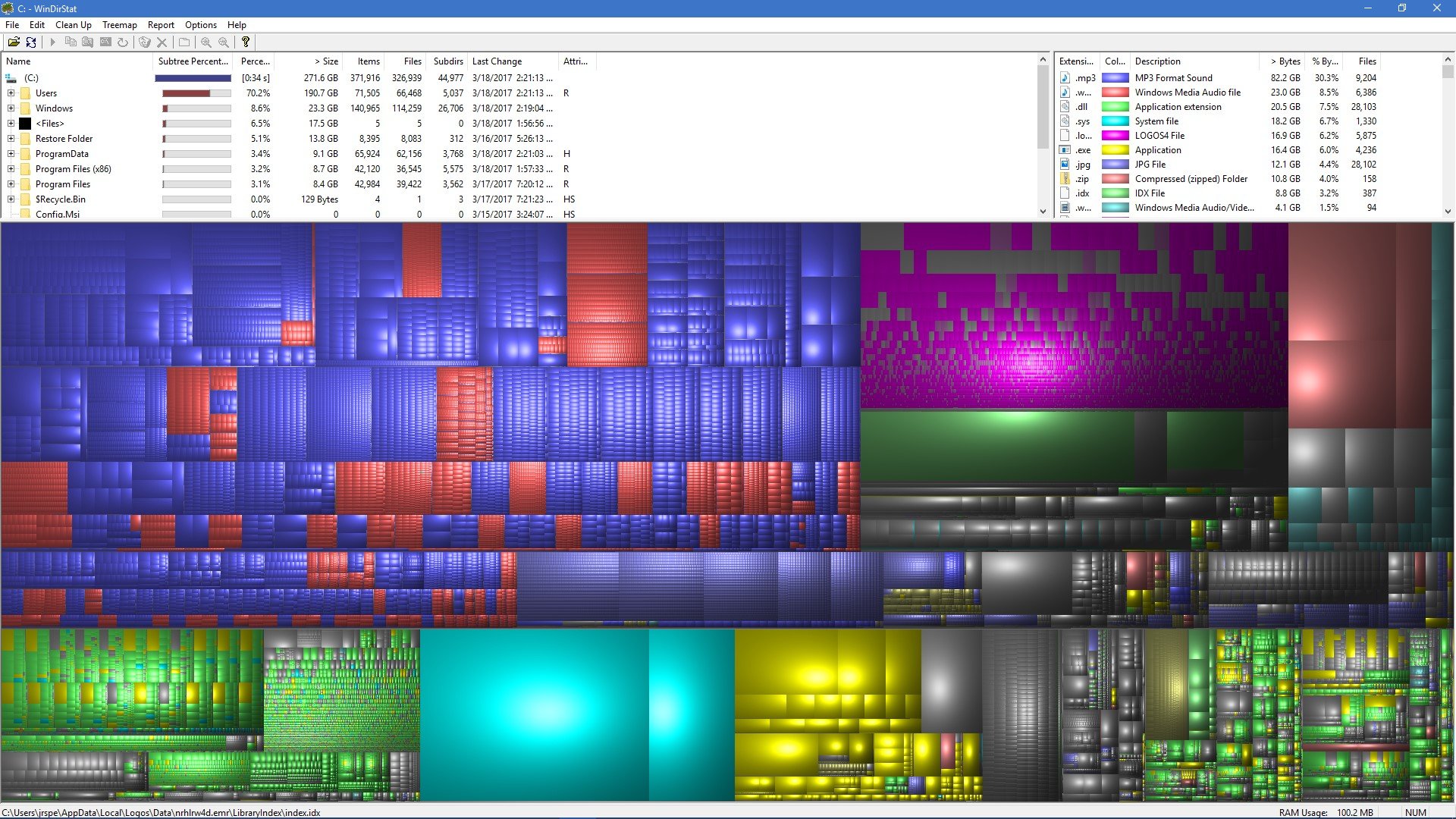
Here is a fun graphical way ...
click on image to enlarge
"The treemap represents each file as a colored rectangle, the area of which is proportional to the file's size. The rectangles are arranged in such a way, that directories again make up rectangles, which contain all their files and subdirectories. So their area is proportional to the size of the subtrees. The color of a rectangle indicates the type of the file, as shown in the extension list. The cushion shading additionally brings out the directory structure."
By hovering your cursor over any rectangle/square you can reads the filename in the lower left status bar. You can also click on any folder/directory in the listing at the top to focus on it in the graphics area below (and vice versa).
Depending on the speed of your computer, HDD/SSD, graphics card, this program can take a while to generate the graphic output.
Website links to alternative programs for Linux and Mac.
Edit: Download the installer file (Windows) at here, here, or here.
a fun graphical way
Here's the most beautiful way to analyze disk space usage on a Mac, and it is very quick at generating its graphics.
A very happy customer; no affiliation with the developer.
I was shocked recently when I found a folder called cache that had 34GB in it. Figured out that when I chose to download the set of the video for a course (which I did for all of my courses) they end up there. If you make a point of choosing to remove them when done that folder cleared ight up. Best practice is probably to not try to store local copies of mobile ed videos till you need them.
I am curious to know if it is possible to just have that cache folder be located on a larger 2nd drive. Not really needed and I will not leave them off my system until I really need them but thought I would ask. Have 1TB "D" drive but the system is on a very fast PCI e SSD.
I will not leave them off my system until I really need them but thought I would ask. Have 1TB "D" drive but the system is on a very fast PCI e SSD.
See Move to a different drive.
Available Now
Build your biblical library with a new trusted commentary or resource every month. Yours to keep forever.