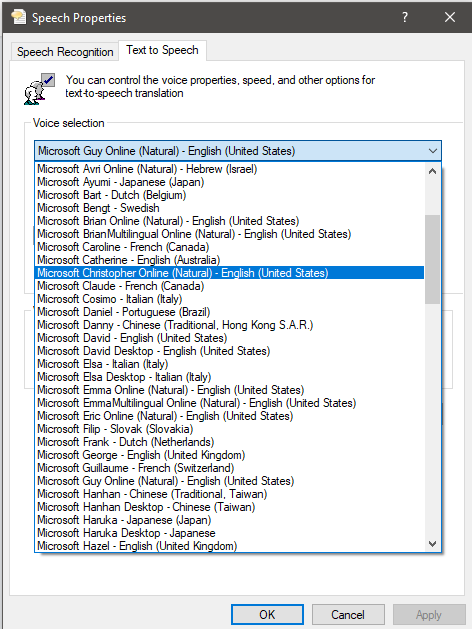
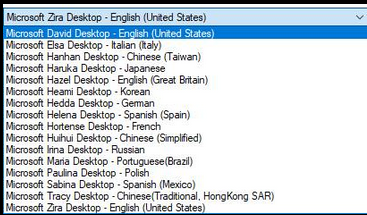
I have found a way (via Chat) to get the full spectrum of English (or any) native Windows language packs to work in Read Aloud for Logos. It is below. For instance, I now have UK English - George, US English - Mark, and Irish English - Sean, also the Natural Voice US- English - Guy, etc. which are much more bearable than US English - David. Below is a picture of what I had as an option before the update, and what I have now.
(These steps don’t change the rundll32 command; they make the old SAPI voice list include the additional Windows “OneCore” voices that come from installed language packs.)
Goal
Make the old SAPI voice picker (opened via sapi.cpl) show all installed English Windows voices (including OneCore voices tied to language packs).
Step 0 — Open the old SAPI voice panel (optional)
- Press
Win + R - Paste this and press Enter:
rundll32.exe shell32.dll,Control_RunDLL "C:\WINDOWS\system32\Speech\SpeechUX\sapi.cpl"
This is the “old” voice UI. It normally shows only “Desktop” voices.
Step 1 — Install English voices (Language packs / speech)
Install the English voices you want first (US, UK, etc.).
- Open Settings
- Go to: Time & language → Language & region
- Under Preferred languages, select an English language (or click Add a language to add one)
- Click Language options
- Make sure Text-to-speech (and Speech) is installed for that language
Repeat for each English variant you want (e.g., English (United States), English (United Kingdom), etc.).
Step 2 — Run PowerShell as Administrator
- Click Start
- Type:
powershell - Right-click Windows PowerShell
- Click Run as administrator
You must see Administrator: in the window title.
Step 3 — Copy OneCore voices into the SAPI Desktop registry location
Copy/paste this command into the Administrator PowerShell window:
reg copy "HKLM\SOFTWARE\Microsoft\Speech_OneCore\Voices\Tokens" "HKLM\SOFTWARE\Microsoft\Speech\Voices\Tokens" /s /f
You should see a “The operation completed successfully” style message.
Step 4 — Reboot Windows
Restart your computer.
(This ensures the old Speech UI and any SAPI apps reload the voice registry.)
Step 5 — Open the old SAPI panel again and verify
Press Win + R, paste, Enter:
rundll32.exe shell32.dll,Control_RunDLL "C:\WINDOWS\system32\Speech\SpeechUX\sapi.cpl"
Go to Text to Speech tab → Voice selection dropdown.
You should now see the expanded list (including voices brought in by installed English language packs).
If you get “Access is denied”
You did not run PowerShell as Administrator. Repeat Step 2.
If you see voices but “Preview Voice” fails
Try:
- In the same Speech window, click Audio Output…
- Select a different playback device (or reset to default)
- Click OK and try Preview again
(Some systems fail preview when the selected audio device is invalid/disconnected.) If you want, I can also give you a “revert” command (to undo the registry copy), so your shared instructions include both “apply” and “restore.”
******Further Instructions for adding Natural Sounding Voices:
1. Go to Github for the program NaturalVoiceSAPIAdapter:
https://github.com/gexgd0419/NaturalVoiceSAPIAdapter?tab=readme-ov-file
2. Download your needed version from here:
https://github.com/gexgd0419/NaturalVoiceSAPIAdapter/releases
3. Place on your computer in a spot that it can remain permanently. This is important. Then extract.
4. Before you run the program, download the Natural Voices into a separate folder, someplace also permanent. You can find the voices here:
https://github.com/gexgd0419/NaturalVoiceSAPIAdapter/wiki/Narrator-natural-voice-download-links
5. Go back to your extracted NaturalVoiceSAPIAdapter folder, and run the exe. Browse, and point it to the folder that contains the Natural Languages. Finish the process then Close.
6. Hit the Windows Button and R, Paste C:\WINDOWS\system32\Speech\SpeechUX\
Double clicked the Sapi.cpl link and select the voice you would like. The Natural Voices should now be present.
7. Open up Logos and verify.
You may need to restart your Computer to take effect. I did not, but you may.
For further, more precise instillation instructions, follow the instructions on the NaturalVoiceSAPIAdapter Github page. Verified working in Desktop with Windows 10.
Before Update:
After Update: